
New Ways to Save at Micro Center: The Build Your Own Combo

When we launched our motherboard bundles, combining a processor, motherboard, and RAM while shaving off a couple hundred dollars in savings, people loved it. But we did get a lot of requests to be able to customize what actually went into those bundles. Well, wish granted in the most Micro Center way: by going above and beyond. Not only can you customize the processor, motherboard, and RAM, but now you can add and save on graphics cards, power supplies, cases, and more with the Micro Center Combo Builder.
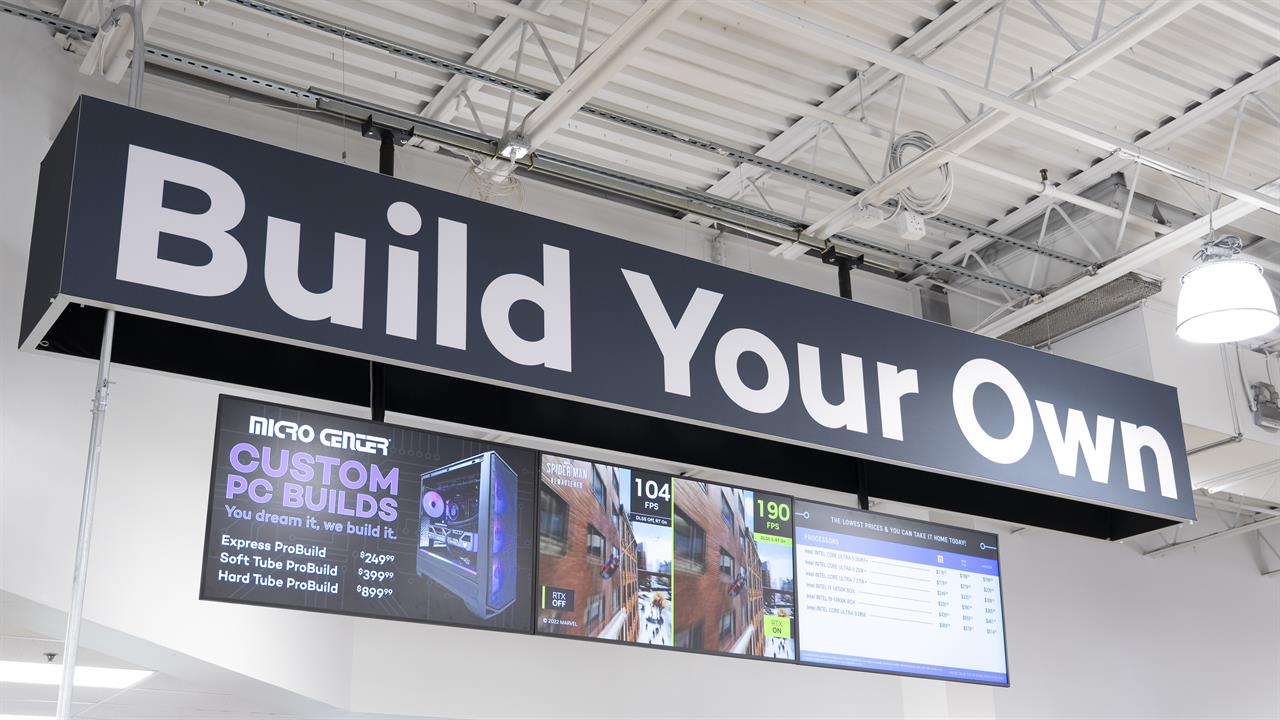 Photo: Jacob Bobo
The Micro Center Combo Builder is now live and ready to help you design the PC of your dreams and save you money. The builder even shows exactly how much you can save on each part before adding it to your cart. The best way to understand what the Combo Builder can do is to go play with it yourself and see how much you can save. The second best way is by reading on.
Choose Your Own Parts, Watch The Price Drop
We’ve had our AMD and Intel motherboard bundles for a while now, but the Combo Builder is a new feature with a lot of options. So, if you bopped over to the combo builder but felt like a little explainer might help, you’re in the right place.
At the very top of the page, we have two solid -- but totally optional -- starting points to work from, one AMD and one Intel. Clicking “add to combo” on either will start to populate the combo builder underneath with the included components. Of course, if you'd rather start from scratch, just scroll down a bit to the main combo builder.
On the left hand side of the combo builder is the component list. Each component, be it CPU, GPU, PSU, AIO, or another three-letter-acronym, includes a “Save up to $X with a combo.” That shows the maximum you can save on a component in that category. Click a component category and the builder will show all eligible parts as well as the individual savings on each. From there it’s just a matter of filling out your PC exactly how you want it.
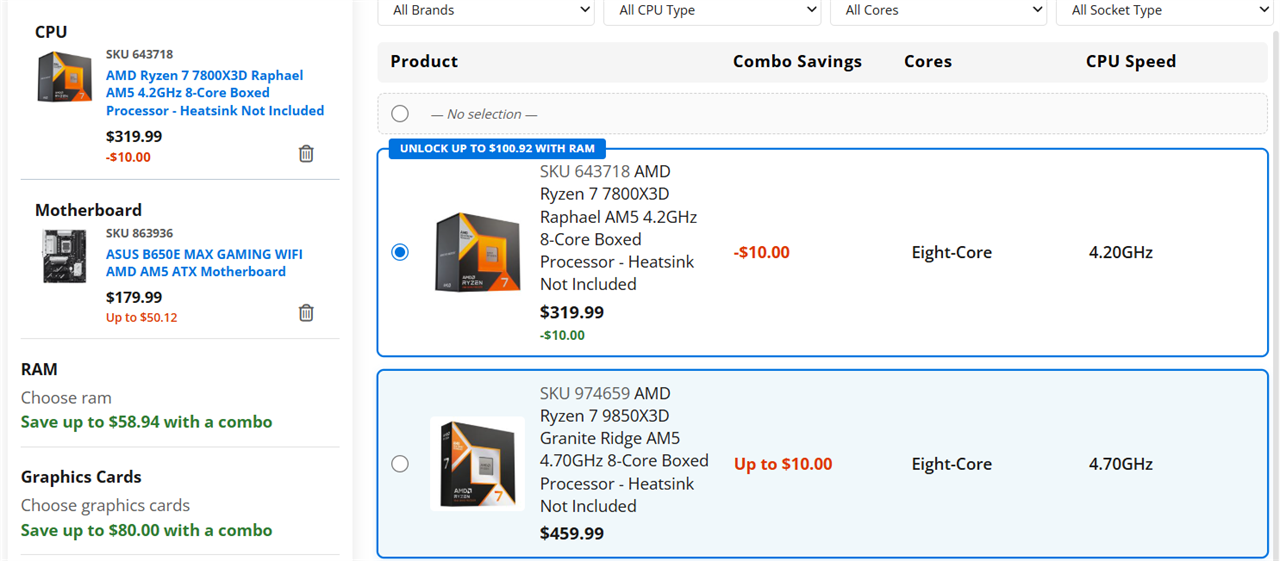
Each part added will adjust the maximum savings of any unselected parts. In other words, when you add a CPU, the maximum savings on a motherboard may decrease as the motherboard is no longer compatible with that processor or bundle. And don’t worry if you’re new to PC building, as this same system works as compatibility guardrails so you won’t accidentally add an Intel motherboard to an AMD processor bundle.
See the Combo Builder in Action
We still have our classic combos, if you’re looking for an easy way to save on components without having to pick and choose. But if you’re looking for a bit more customization, spend some time digging into our Combo Builder; you never know how much you might be able to save.
Of course, if you need help picking out which computer parts are right for you, stop into your local Micro Center. Our knowledgeable associates will be more than happy to help you find the perfect parts for your needs, whether for coding, AI, gaming, editing, or anything else.
More from MC News
- Run AI Locally: The Best LLMs for 8GB, 16GB, 32GB Memory and Beyond
- Quantization Explained: Why the Same LLM Gives Better Results on High-End Hardware
- Why Context Length, Not AI Model Size, Is Your Biggest VRAM Problem
- How to Use LM Studio to turn your PC into an AI Server
- Why VRAM and Memory Bandwidth are Key for Powering Local AI
- Keyboard 101: Intro to Computer Keyboards
- Fix It Yourself: Talking to iFixit on Why Repairable Tech Matters
- The Local LLM Your Laptop's Been Waiting For
- Gemma vs Qwen: Which Local AI is Best?