

The Local AI Features in macOS 27 Golden Gate

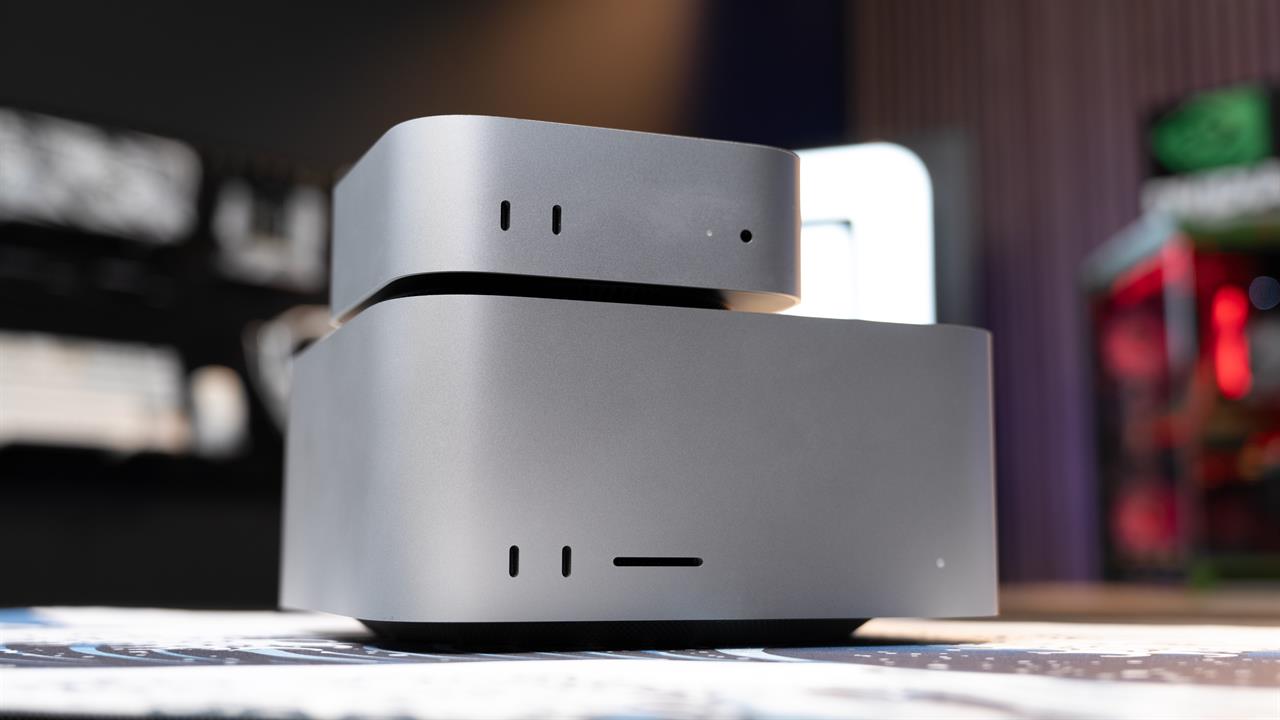
Photo: Jacob Bobo
Apple, uniquely, runs a lot of its AI features right on your device. And there are a few hidden features, including an offline chatbot you can use entirely in the Terminal.
We've talked about how the new Mac mini and Mac Studio are AI powerhouses, but you don't need to install Ollama or know anything about Hugging Face to try out Apple's on-device AI. In June Apple announced their new AI models, which the company built in collaboration with Google. Two on-device models were mentioned: AFM 3 Core and AFM 3 Core Advanced.
It's the second one, AFM 3 Core Advanced, that anyone into local AI is going to find interesting. This model is offered on "our most capable Apple silicon systems," which fine print suggests is any Mac running an M3 processor or higher with at least 12GB of memory.
This is a 20-billion-parameter model, which would normally take a lot of resources to run locally. Apple works around this with what it calls Instruction-Following Pruning, which it outlined in a 2025 paper, which means only a fraction of the model needs to be loaded to RAM—1 to 4 billion parameters—in order to complete tasks.
Here are a few things you can try on your Mac after upgrading to Golden Gate.
A fully offline chatbot
If you're running macOS 27, your Mac already has a built-in offline AI tool you can use in all sorts of interesting ways. The most straightforward way is as a chatbot. Open the Terminal app, or whatever your console of choice is, and type fm chat. Now you can talk to your computer.
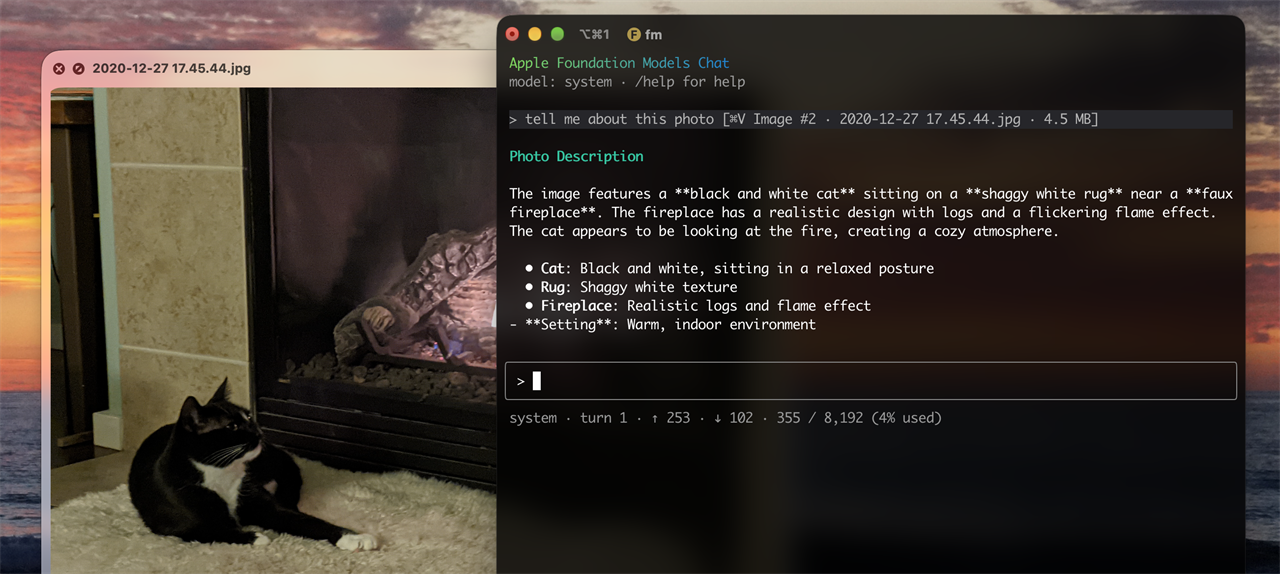 All screenshots by Justin Pot
This is an interface for directly asking questions of the model on your device. If you've played with Ollama, or similar tools, you might expect responses to be slow, but that's not the case here—I was seeing responses to questions almost immediately. I could even drag an image to the Terminal and ask for a description.
Now, this isn't going to replace Claude or ChatGPT anytime soon—the responses are brief, and tend to be basic. But you can use it for basic things like copy editing or simple programming. And there's more than just a chatbot. The command fm respond lets you send a bit of text to the model and get an immediate response, which is useful if you want to use AI in the context of a script you're writing. Or, if you're using an application that's compatible with OpenAI's API, you can use the command fm serve to start a local server.
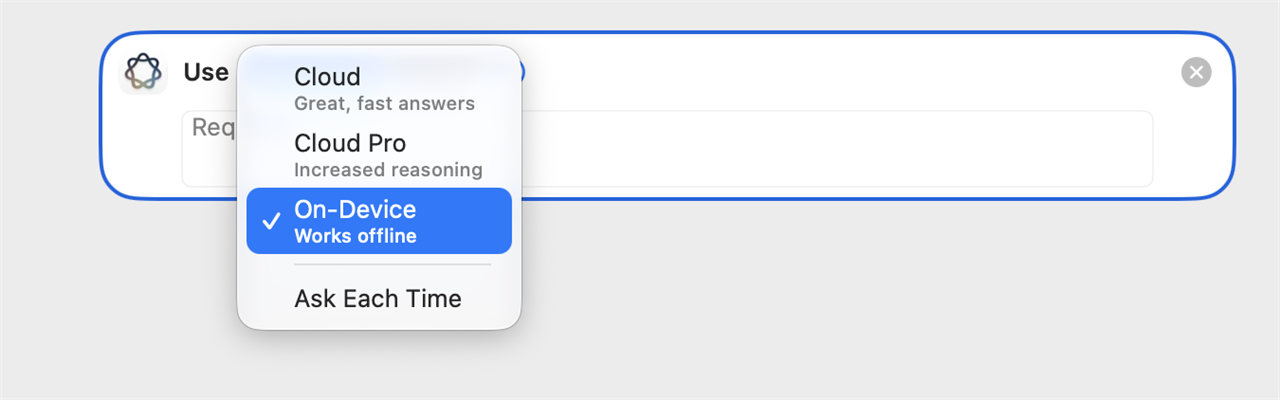
It's worth noting that the new model is also available in Apple Shortcuts, thanks to the On-device option in the Use Model action. Again, this means you can automate stuff using AI with no token costs whatsoever.
Like I said: this isn't going to compare to the models offered by Anthropic or OpenAI, but it's running on your own hardware. That means it's basically free. Like all local AI, it's going to take some experimentation to find out how this tool is and isn't useful. But it's already on your Mac, ready for you to experiment with. Why not give it a spin?
Better text-to-speech voices
Among the more obvious AI features are the new, more expressive voices, powered by the AFM 3 Core Advanced model. As we said before, that model is only offered on Macs with an M3 processor or higher and at least 12GB of memory.
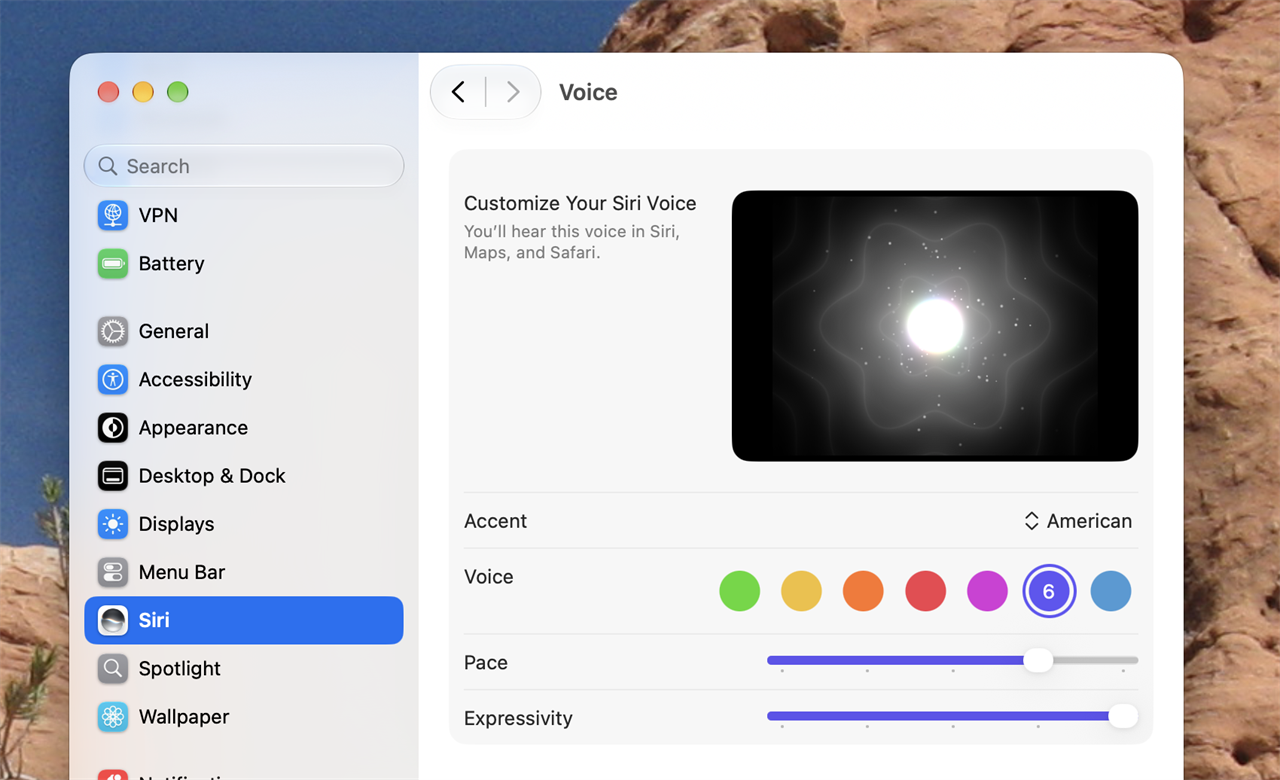
You can find the new voice for Siri by opening System Settings > Siri > Voice. If you see sliders for Pace and Expressivity, you have access to the new voices. I highly recommend you spend a bit of time choosing a voice that you like, then tweaking it until it sounds just right. Believe me: you're going to notice a difference compared to Apple's old voices almost immediately.
But don't stop there. You can use these voices for more than just Siri. In System Settings head to Accessibility > Read & Speak, and look for System Voice. Find the voice you just picked—it should be called Siri followed by the number of the voice you chose in the Siri settings. Your computer will now use this new voice for all text-to-speech operations.
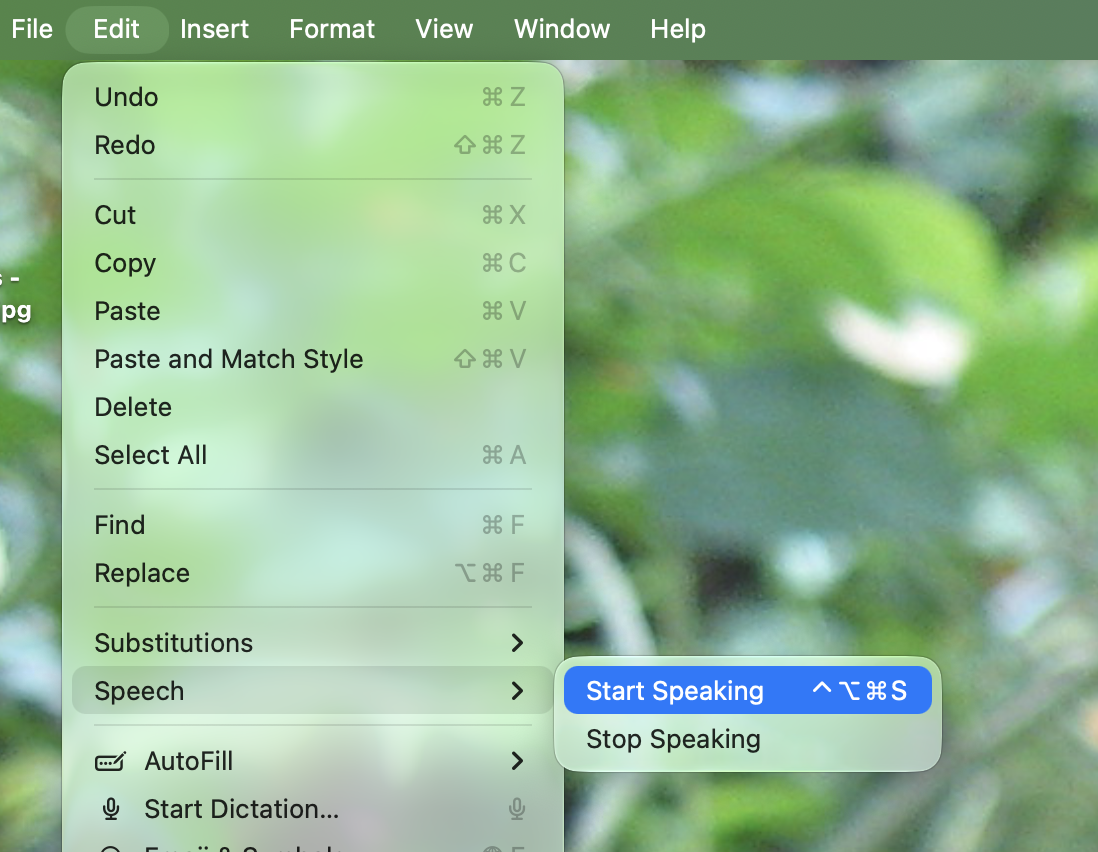
Many Mac applications, including Safari, offer the Start Speaking option. You can use this to listen to the currently highlighted text, or the current website or document if no text is highlighted. I find this a useful way to listen to an article while doing the dishes. These new higher-quality voices make that a lot more pleasant. I tried this with my Wi-Fi turned off and it worked—you could use this to listen to a document in airplane mode.
There's also a way to use this in the Terminal: just type the word say followed by whatever you want to hear your computer say. That's fun, but is also potentially useful for scripting. And the Speak Text action in Apple Shortcuts also works offline, allowing for more creative uses.
Better dictation, completely offline
One of the most useful things the age of AI has brought us is better dictation, and macOS 27 brings that to the Mac. If your device is compatible you don't need to do anything—just start dictation using the dictation button on your keyboard.
If you've used dictation in macOS in previous versions you're no doubt aware of how clunky it could be. It's worth giving it another try and seeing how it works, because I'm finding it's a lot better about formatting sentences correctly. You can watch it reformat the text as you go—it changes its formatting decisions when you get to the end of a sentence. And you can edit with your keyboard while in dictation mode, meaning you can switch back and forth. It feels like collaborating with the computer, in a way.
Now, is this a drop-in replacement for cloud-based services like Wispr Flow? That's up to you to decide after a bit of experimentation. But it does one thing Wispr Flow cannot: work offline. I tried Apple's new dictation with Wi-Fi turned off and it worked flawlessly. That means there are no recordings of your voice being sent to some server somewhere, and that you could use it comfortably from a cabin in the woods.
As I said: these offline AI features aren't going to replace their online equivalents for all people, or for all use cases. But they're all useful, and if nothing else could reduce your token usage or subscription costs. Give them a try after you install Golden Gate.
More from MC News
-
Run AI Locally: The Best LLMs for 8GB, 16GB, 32GB Memory and Beyond
-
How to Use Local AI With Your Own Files: A Beginner's Guide to RAG
-
Reading vs. Answering: The Two Hardware Bottlenecks Behind Local AI Performance
-
Quantization Explained: Why the Same LLM Gives Better Results on High-End Hardware
-
Why Context Length, Not AI Model Size, Is Your Biggest VRAM Problem
-
Fix It Yourself: Talking to iFixit on Why Repairable Tech Matters
Justin Pot is a tech journalist whose work has appeared in WIRED, Popular Science, PCMag, Lifehacker, The Atlantic, and The Wall Street Journal.