
How to Use Any Local LLM for Free With Claude Code

 Image: Anthropic
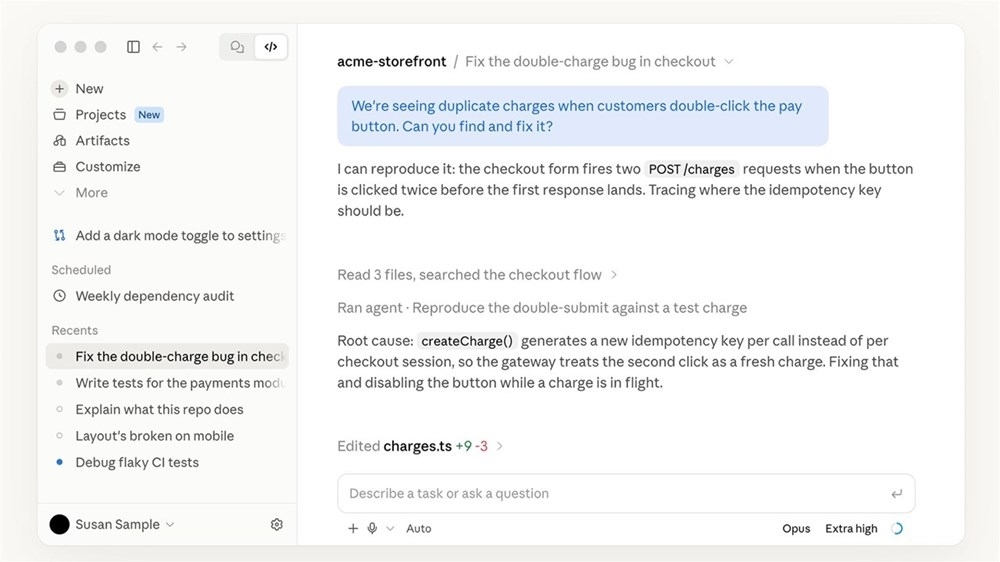
Claude Code has been ranked this year’s most popular coding agent by multiple 2026 developer surveys, including ones from Stack Overflow and First Page Sage. But it’s not just access to Anthropic’s frontier AI models that make it great.
Unlike many competing IDE coding assistants, Claude Code offers complete transparency, precise context handling, an ever-expanding integration ecosystem, and permission management features that few other coding agents can match. The only thing working against it is Anthropic’s aggressive pricing structure for Claude models, which can exceed hundreds of dollars a month in API tokens on top of a $100-200 a month Claude Max subscription.
But did you know that you can uncouple Claude Code from Anthropic’s frontier AI models? Just pair it with any open-weight model like Qwen3.8 or Devstral, hosted on any private server or your local hardware. That way you keep the best parts of the coding agent without having to pay for a monthly Claude subscription or API credits. I’ll show you how easily you can do this, why you should, and what kind of tradeoffs you can expect.
Why pair Claude Code with a local LLM?
Claude Code, Anthropic’s powerful AI coding agent, doesn’t actually cost anything to download or use.
But since Claude Code only runs on frontier AI models like Fable 5.1, Sonnet 5.5, or Opus by default, you need to get on a monthly subscription plan like Claude Pro, Max 5x, or Max 20x, which can set you back anywhere between $20 and $200 a month. Not to mention that you’ll also have to pay for API credits once you run out of your monthly token quota, which is very likely given how fast tokens are consumed during complex coding tasks.
Anthropic says it doesn’t officially support pairing Claude Code with other AI models, but Ollama and LM Studio both support Claude Code integration natively, according to their docs. Smaller open-weight LLMs may not match frontier models on coding efficiency or accuracy (they work well for simpler workflows), but you still benefit from Claude Code’s improved permissions management and context handling.
Read more: How to Use a Local LLM in Visual Studio Code
What you need before you start
This setup comes in two parts. There’s your local model server like Ollama or LM Studio, which serves as the bridge between open-weight LLMs like Qwen3.8 and Claude Code’s CLI (command-line interface). And then there’s the Claude Code CLI itself, which can be downloaded free of charge from Anthropic’s website without any Claude subscription or API costs.
You’ll also need to pick an open-weight coding model that fits your GPU specs and VRAM, admin access to Terminal or PowerShell, and a local machine or server running an up-to-date operating system version.
Read more: Ollama vs LM Studio: Which Local AI Software Is Best for You?
Software prerequisites
- Operating system: macOS 13.7.8 (Ventura) or later, Windows 10 (version 1809) or later, or Ubuntu 20.04 / Debian 10 or later.
- Model server: The latest version of Ollama or LM Studio.
- Claude Code: Ollama lets you set up Claude Code automatically with a single shell command, while LM Studio recommends using the Anthropic installer.
- Terminal access: macOS Terminal, PowerShell on Windows, or the default Linux terminal for Ubuntu / Debian. For native Windows installs, you’ll also need to install Windows Subsystem for Linux (WSL) or Git Bash to run the shell commands needed for this install.
Recommended hardware
| Minimum VRAM | Example model | Download size | What to expect |
|---|---|---|---|
| 16 GB | gpt-oss:20b | 14 GB | Tight fit; shorten the context window and stick to smaller projects |
| 24 GB | devstral-small-2 | 15 GB | Room for a long context cache on mid-size codebases |
| 32 GB | qwen3-coder:30b | 19 GB | The comfortable tier for 64K context and multi-file edits |
| 64 GB | devstral-small-2 (fp16) | 48 GB | Full-precision weights with space left for context |
Read more: Watch: How Much GPU Do You Really Need for Local AI? RTX 5070 Ti vs 5090 vs PRO 6000
How to set up Claude Code with Ollama
Ollama makes it really easy to get started with Claude Code thanks to a single-line shell command that takes care of the entire installation and setup process for you. Just follow these simple steps:
- Install Ollama. Grab the latest version of Ollama from the official download page for macOS, Windows, or Linux. Once downloaded, run the installer on your device to get the model server up and running.
- Pull a coding model. Now open a terminal window on your device. This is where we pick an AI coding model that works for your VRAM capacity. If your device runs a 32 GB graphics card, for example, type in the following command:
ollama pull qwen3-coder:30b
You can swap qwen3-coder for a different coding model that works for your hardware, like gpt-oss:20b or devstral-small-2.
- Set the context length. Next, you need to configure the model’s context length. You can either do this in Ollama’s in-app settings, or enter this shell command if you’re using a terminal:
OLLAMA_CONTEXT_LENGTH=64000 ollama serve
- Check that the model fits in VRAM. After setting the context length, run a quick check to see if your model exceeds your current GPU specs by running ollama ps. If the PROCESSOR column shows anything other than 100% GPU (a CPU/GPU split, for example), your model is spilling over into system memory. You can either lower the context length or swap it for a different coding model that’s less hardware-intensive.
- Launch Claude Code. We are now ready to set up Claude Code. Open a terminal window from your project folder, then run this command:
ollama launch claude --model qwen3-coder:30b
Again, you can replace qwen3-coder with whatever other coding model you pulled in Step 2.
- Test it. Once the setup completes, you can start using Claude Code on your desktop with Ollama. Run a few simple automation tasks to see if everything works as expected before moving on to real work.
How to set up Claude Code with LM Studio
LM Studio added an Anthropic-compatible endpoint in version 0.4.1, which means native support for Claude Code via the API integration. However, it doesn’t offer a single-command setup flow like Ollama. You’ll have to download and install Claude Code through the official Anthropic installer, then configure three environment variables to get it to work with LM Studio:
- Install LM Studio. First, download LM Studio 0.4.1 (or later) from the official website. You need to install the app and run it at least once before you can load it up using a command line.
- Find a coding model. Inside the LM Studio app, navigate to the Discover tab to search for AI coding models that fit your device’s GPU specs. You can use qwen/qwen3-coder-30b for 32 GB machines and openai/gpt-oss-20b for 16 GB as a starting point.
- Estimate memory use. Before loading an LLM, assess the estimated memory cost using the built-in function in a terminal window:
lms load qwen/qwen3-coder-30b --context-length 65536 --estimate-only
- Load the model. Now load the model by entering this into your terminal window:
lms load qwen/qwen3-coder-30b --context-length 65536
- Start the server. With the AI model loaded, start your model server by running this in your terminal:
lms server start --port 1234
- Install Claude Code. Time to install Claude Code via Anthropic’s native installer. If you’re using the macOS or Linux terminal or WSL, run:
curl -fsSL https://claude.ai/install.sh | bash
On Windows PowerShell, run:
irm https://claude.ai/install.ps1 | iex
- Point Claude Code at LM Studio. For the final step, we need to configure three environment variables that point the Claude CLI to your local LM Studio installation. Launch a new terminal instance from your project folder, then run the commands below for your operating system and command line.
On macOS, Linux, or WSL
export ANTHROPIC_BASE_URL=http://localhost:1234
export ANTHROPIC_AUTH_TOKEN=lmstudio
export CLAUDE_CODE_ATTRIBUTION_HEADER=0
claude --model qwen/qwen3-coder-30b
On Windows PowerShell
$env:ANTHROPIC_BASE_URL = "http://localhost:1234"
$env:ANTHROPIC_AUTH_TOKEN = "lmstudio"
$env:CLAUDE_CODE_ATTRIBUTION_HEADER = "0"
claude --model qwen/qwen3-coder-30b
Choosing the best local AI model for Claude Code
When picking a local LLM to replace Anthropic’s frontier models in Claude Code, hardware will be your primary deciding factor. Consumer-grade GPUs are limited in their ability to run powerful coding models, so you’ll have to pick from a limited pool of less resource-intensive options.
Look for an open-weight coding model that your VRAM can comfortably accommodate along with a 64K context window. That means beyond the model size, you should also take note of your context cache. VRAM consumption grows as your AI model accumulates more data over multiple chat sessions, which gets piled on top of its base model size.
With Ollama, you also have a built-in KV cache feature for shrinking VRAM usage that has a similar effect to quantization. Set these environment variables before starting the Ollama server to enable its advanced memory-saving features:
export OLLAMA_FLASH_ATTENTION=1
export OLLAMA_KV_CACHE_TYPE=q8_0
Ultimately, local models that can run on consumer-grade hardware won’t offer the same level of functionality as a frontier model like Claude Opus or Fable, so adjust your expectations accordingly. Still, given how much you get to save in subscription costs, it can be a worthy compromise, especially for less complicated coding tasks.
Read more: Run AI Locally: The Best LLMs for 8GB, 16GB, 32GB Memory and Beyond
TL;DR
- Claude Code is free to download, and you can pair it with an open-weight coding model through Ollama or LM Studio instead of paying for a Claude subscription or API credits.
- Ollama is the easiest route: pull a model, then run ollama launch claude --model with your model name.
- LM Studio 0.4.1 or later works too, but you install Claude Code with Anthropic’s installer and point it at LM Studio with environment variables.
- Pick a model that fits your VRAM with room for a 64K context window; 32 GB is the comfortable tier for qwen3-coder:30b.
- Local models won’t match frontier models like Opus or Fable, but they handle simpler coding tasks well.
Need a GPU with more VRAM for local coding models? The associates at your local Micro Center are happy to help you find one that fits your build.