
The Complete Guide to Bluetooth Connections

Bluetooth is a wireless connection standard that is a convenient and easy way to connect two (or more) wireless accessories together – even if they’re cross-platform. Whether you’re looking to play music out of two different speakers, connect a Bluetooth controller to Windows, or even use Bluetooth tethering to bring the internet to otherwise unconnected devices, this guide will walk you through it.
 Photo: Jacob Bobo
Here’s how to get your Bluetooth devices to connect and stay connected.
How to Use Bluetooth Tethering For Efficient Internet Access
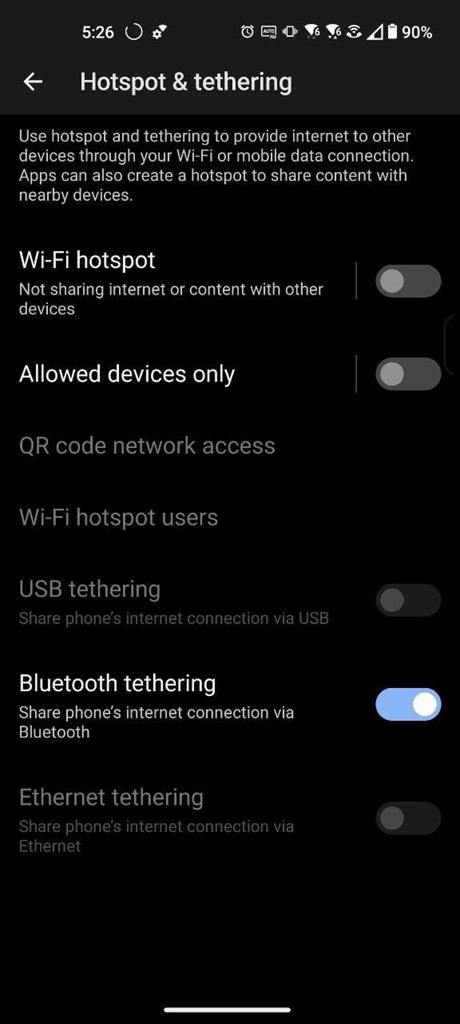
Photo: Android/Jon Martindale
If you don’t have easy access to Wi-Fi or your computer doesn’t have a cellular data connection, Bluetooth tethering can be a great way to get back online. Although running a Wi-Fi hotspot will offer better performance, Bluetooth uses far less power, making it ideal for emergencies when you are low on charge.
Android
- Open the Settings app and navigate to Network and Internet > Hotspot and Tethering. Make sure Bluetooth Tethering is enabled.
- Pair the phone with the device to be tethered.
- Navigate to Bluetooth devices on your laptop or desktop. Select the currently-tethered phone.
- Toggle “Internet access” to On.
iOS
- Ensure Bluetooth is enabled.
- Open the System Settings app on the iPhone or iOS device and select Personal Hotspot. Make sure “Allow Others to Join” is toggled On.
- On the computer, open the Bluetooth menu and look in the available devices section for the iPhone or iOS device. Pair the devices together.
- On Windows 11, select the three-dot menu next to the connected iPhone and select Join Personal Area Network. Make sure Access Point is the selected connection type, then select Connect.
- On MacOS, open the Wi-Fi menu and select the iPhone or iOS device from the list of options.
How to Connect a Bluetooth Controller to Windows
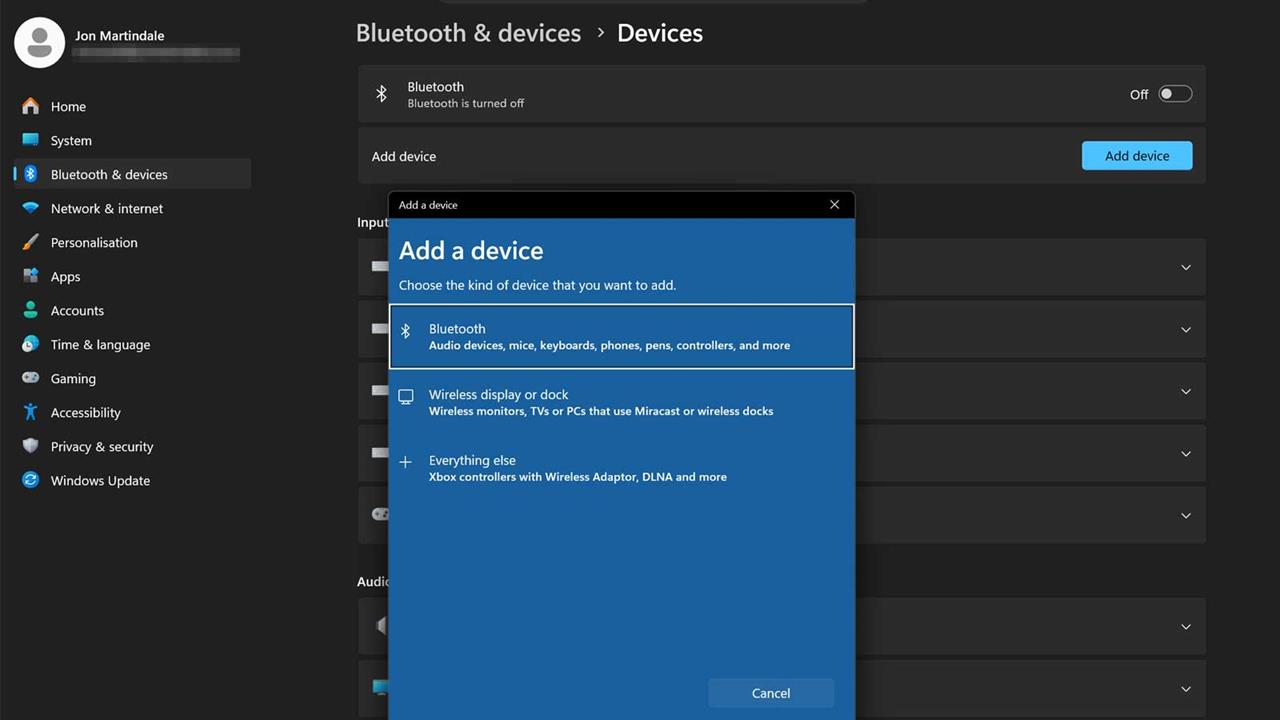
Photo: Windows/Jon Martindale
Unless your controller has a 2.4 GHz USB dongle to connect to, the best and easiest way to connect wireless controllers to Windows is to use Bluetooth. You can also improve performance by having a Bluetooth extender plugged in so you get a strong and responsive signal -- more tips on that below.
- Turn the controller and the Windows device on.
- Press and hold the pairing button on the controller until it enters pairing mode.
- On Windows, navigate to Settings > Bluetooth & devices.
- Make sure Bluetooth is enabled.
- Select Add device.
- Select Bluetooth. Wait a moment for Windows to find the controller. If it doesn’t, select Cancel, repeat the process and select Everything Else from the device list instead.
- When Windows finds the controller, select it to pair it with Windows.
If you still find issues connecting to Windows, try placing your controller closer to your PC. You can also try plugging the controller in with a USB cable to make sure that the controller itself is functioning well, then re-try via Bluetooth connection.
How to Connect Bluetooth Headphones to Windows
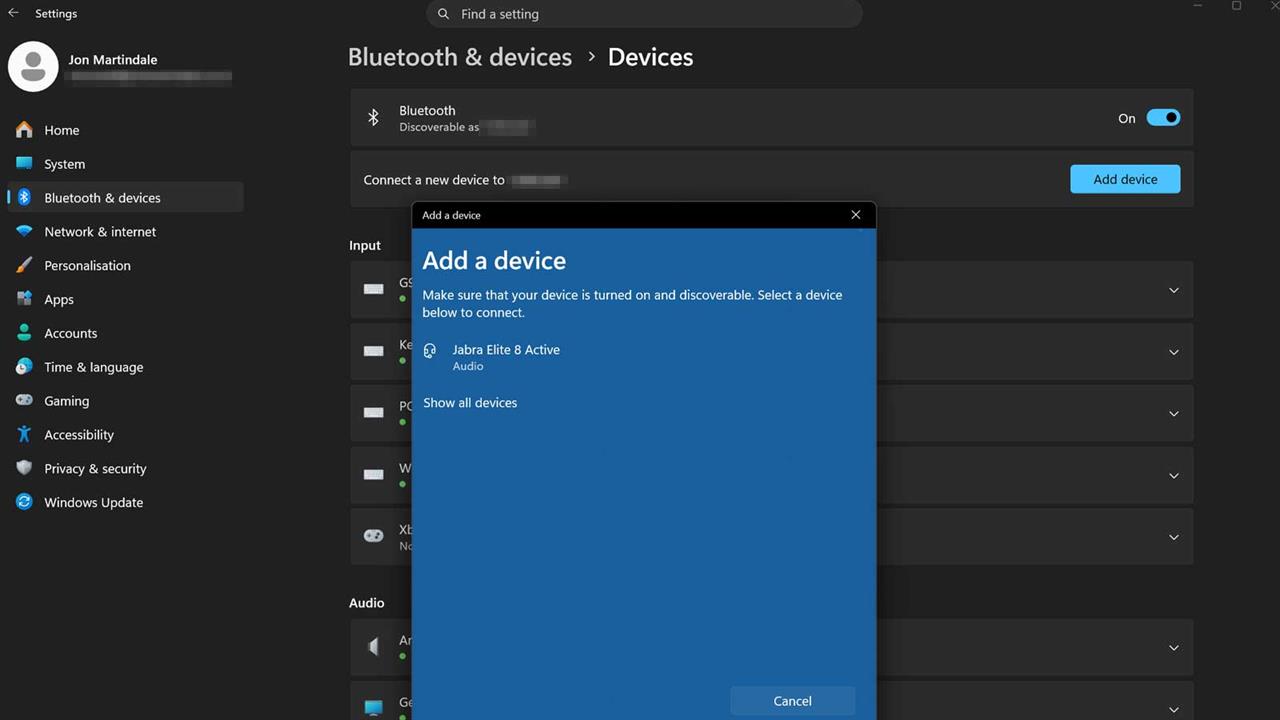
Photo: Windows/Jon Martindale
You can use Bluetooth headphones with Windows like you can most other devices. You just need to pair them first.
- Turn the headphones or earbuds and Windows device on.
- Press and hold the pairing button on the headphones until they enter pairing mode.
- On Windows, navigate to Settings > Bluetooth & devices.
- Make sure Bluetooth is enabled.
- Select Add device.
- Select Bluetooth. Wait a moment for Windows to find the earbuds or headphones and select them. Follow the on-screen prompts to complete pairing.
How to Connect Bluetooth Headphones to SteamOS

Photo: Valve/Jon Martindale
SteamOS is a great platform for gaming, whether you’re using a Steam Deck, Steam Machines or any of the other SteamOS devices; you can even make your own. However you use SteamOS, though, you can connect your Bluetooth headphones and earbuds to it just like any other device. Here’s how.
- Start up the Steam Machine or other SteamOS device. Login if necessary.
- Turn the headphones or earbuds on and enter pairing mode.
- On SteamOS, open the main menu system and navigate to Settings > Bluetooth
- Toggle Bluetooth to On if it’s disabled.
- Select the headphones or earbuds from the list of available devices to pair them together. If they don’t appear, select Show all devices. If the headphones still don’t appear, try turning the headphones off and the back on before entering pairing mode again.
How to play audio out of two Bluetooth headsets at once
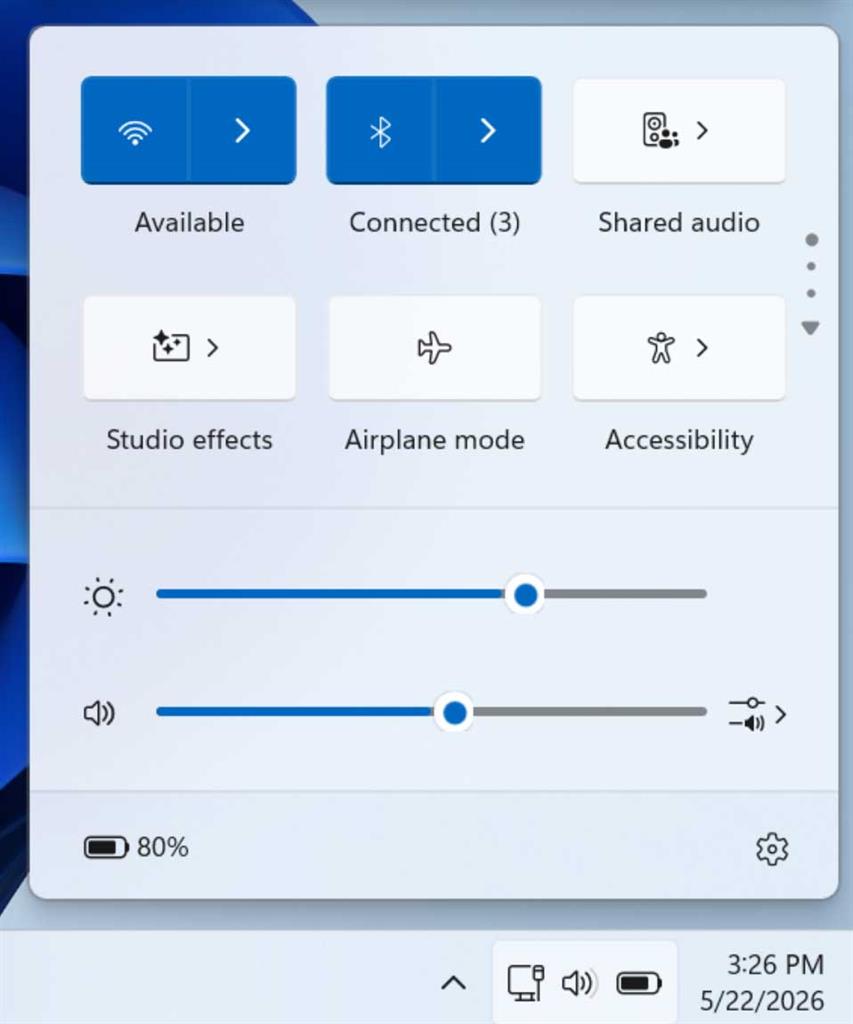
Photo: Microsoft/Jon Martindale
Microsoft added a new Shared Audio feature to Windows 11 in May 2026, making it possible to play audio out of two pairs of Bluetooth earbuds or headphones at the same time.
Make sure your Windows PC is running at least Windows version 25H2 or 26H1. Alternatively, ensure that you have the optional update KB5089573 installed. You also need a desktop or laptop that supports Bluetooth LE Audio, and both sets of headphones or earbuds will also need to support it to take advantage.
- Turn on the Windows PC and make sure Bluetooth is enabled.
- Pair both sets of earbuds or headphones with Windows if they’re not already paired; full instructions can be found above.
- Open the Quick Settings menu in the bottom-right by selecting the audio, battery, or network icons.
- Select Shared Audio. If it’s not immediately visible, try scrolling down through the list of Quick Settings options.
- From the list of connected Bluetooth audio devices, select the two that audio will be shared between. Then select Share.
- While the two devices are sharing audio together, the Shared Audio menu is used to adjust the audio volume of the two headphones/earbuds individually.
- While audio is being shared, a Shared Audio icon will appear in the taskbar to make accessing the menu a little easier.
Extra Tips: How to improve Bluetooth signal in Windows
If you find that your Bluetooth devices like headphones, mouse and keyboard, or game controllers keep disconnecting, or have aggravating input lag, you may need to improve your Bluetooth connection between the device and Windows. Here are a few ways to do it.
Plug in an external antenna
If your PC came with an external wireless antenna, make sure it’s plugged in, even if you aren’t using Wi-Fi. Your system’s Bluetooth modem may make use of the wireless antenna to boost the signal and connecting the antenna can make a world of difference to the connection performance and reliability of your device’s Bluetooth.
If your device doesn't come with an external wireless antenna, or is Wi-Fi only, you can pick up a long-range USB Bluetooth antenna for less than $20 that can go a long way to boosting your signal. This can also be useful if you want to upgrade your desktop or laptop’s Bluetooth version, giving you access to greater performance and more modern features without a full rebuild.
Move the devices closer together
Bluetooth is a relatively short-range wireless technology, meaning that physically moving devices closer together can improve the reliability of the connection and its performance. You can also try moving obstructing objects and ensuring that both devices have a clear line of sight to one another. It’s not strictly necessary, but can improve performance and the connection’s stability.
Disable other nearby wireless devices
If you have other wireless devices nearby such as Wi-Fi-connected smartphones and tablets, baby monitors, smart speakers, wireless light bulbs, or other IoT devices, they can all impact the performance and stability of a Bluetooth connection. Disabling them, turning them off, or moving them away from the device(s) you’re trying to connect can help reduce connection interference.
Reboot your devices
It’s generic advice, but it works often enough that it’s still worth repeating. Turn both your Bluetooth device and the system or device you’re trying to connect to off and on again. You can also try disabling and re-enabling Bluetooth, and re-pair the two devices. Forget them first, if necessary.
Update your Bluetooth drivers
It’s possible that your desktop or laptop has new Bluetooth drivers that may improve performance and connective stability. If you are using a pre-built desktop or laptop, navigate to the manufacturer’s website and find your particular model. The support page for that device should have a range of driver and utility download options. Locate the Bluetooth driver, download it, then install it following the on-screen instructions.
Alternatively, if your system is a DIY or custom build, locate the name of your motherboard manufacturer and the motherboard model. Navigate to the manufacturer’s website, then find your specific motherboard model. Navigate to its support page, and find the latest Bluetooth driver. Download it and install it by following the on-screen instructions.
And that’s how to connect a myriad of Bluetooth devices. If you have more questions about Bluetooth, are still struggling to make the connections, or if you just have worries about the health of your computer or device, our experts can help! Schedule an appointment with the Knowledge Bar by visiting our Services webpage.
More from MC News
- The Complete Guide to Essential Browser Settings
- Complete Guide to Windows 11 Disk Management
- Run AI Locally: The Best LLMs for 8GB, 16GB, 32GB Memory and Beyond
- How to Build a PC with a Hardline Water-Cooling Loop
- 3D Print a Mac Mini Monitor Mount
- Keyboard 101: Intro to Computer Keyboards
Jon Martindale is a freelance technology journalist and writer from Gloucestershire, UK. He's written for a range of publications over a 20-year career, including DigitalTrends, USNews, Forbes, and Lifewire, among many others. Over that time he's written countless how-to guides, best-of lists, hands-on reviews, and in-depth op/ed features.
He has been building and working with computers since his teens, and loves nothing more than trying out the latest components and gadgets to see what they can do. When he isn't staring at a monitor, he can be found chasing after with his two young children, playing board and roleplaying games, or walking his French bulldog cross.