
The Complete Guide to Managing Windows Startup Programs and Services

Managing startup programs and services in Windows is a smart way to help your PC boot faster, load Windows services quicker, and just generally run more efficiently as fewer background applications fight to take up resources. You don’t need to strip Windows to the bone to make it functional, but over time bloatware and old apps and services can clog up your Windows startup. Giving your startup programs a clear out now and again is a good way to help maintain a functioning operating system.
 Photo: Jacob Bobo
In this comprehensive guide to managing Windows startup programs and services, we’ll walk you through how to enable and disable startup programs, how to add new ones, how to manage Windows services and more, across the most popular Windows operating systems.
Note: Due to their similarities, many of the guides listed here work across both Windows 11 and Windows 10. However, where there are substantial differences between the two we’ll note those separately.
How to find which Startup applications are slowing your PC down
Disabling applications at Windows startup is a useful way to improve performance and reduce boot times by simplifying startup. You can see which apps are causing the most impact within the Task Manager or Startup apps Settings menu.

Photo: Microsoft
- Right-click the Taskbar and select Task Manager.
- If necessary, choose More details to expand Task Manager and gain access to the additional tabs and menus.
- Select the Startup tab at the top of the Task Manager window.
- Look for the column called “Start-up impact.” It will list all apps that launch at startup and label them as High Impact, Medium Impact, Low Impact, or Not Measured.
- “High Impact,” means an app uses the entire CPU’s performance for more than one second or its storage drive usage is higher than 3MB. “Medium impact” apps require the full CPU power for less than one second, but more than 300 milliseconds, or total storage drive usage is less than 3MB, but more than 300 KB. “Low Impact” means that the app requires less than 300 milliseconds of total CPU power, or less than 300 KB of total disk usage.
- Some apps have “Not measured” next to their names. This means the app was recently updated, or Windows hasn’t had enough time to measure its impact yet. This tends to happen over several reboots, so if the computer hasn’t restarted in a while, or it's running a pretty new build of Windows, that may be the case for a number of your apps. For apps that list “None,” as their impact, they’re either so lightweight they don’t even register, or more likely, they’re already disabled at startup.
When choosing which startup apps to continue using, factoring in how important they are to you, and how much impact they have on the startup process can be useful. Disabling as many High Impact apps as possible can help speed up Windows boot and load times. However, be sure not to disable any apps you particularly need, as you’ll only end up having to manually start them up anyway.
How to Enable and Disable Startup Programs
Windows lets you enable and disable startup programs in the same place, making it a convenient way to manage what applications you want to start up with Windows. The process is slightly different between operating system versions, but it’s pretty straightforward in each case.
Note: Disabling some apps at startup may reduce the functionality of some applications. You may need to launch them manually if you often rely on them for specific tasks.
Windows 11
Source: Microsoft/Jon Martindale
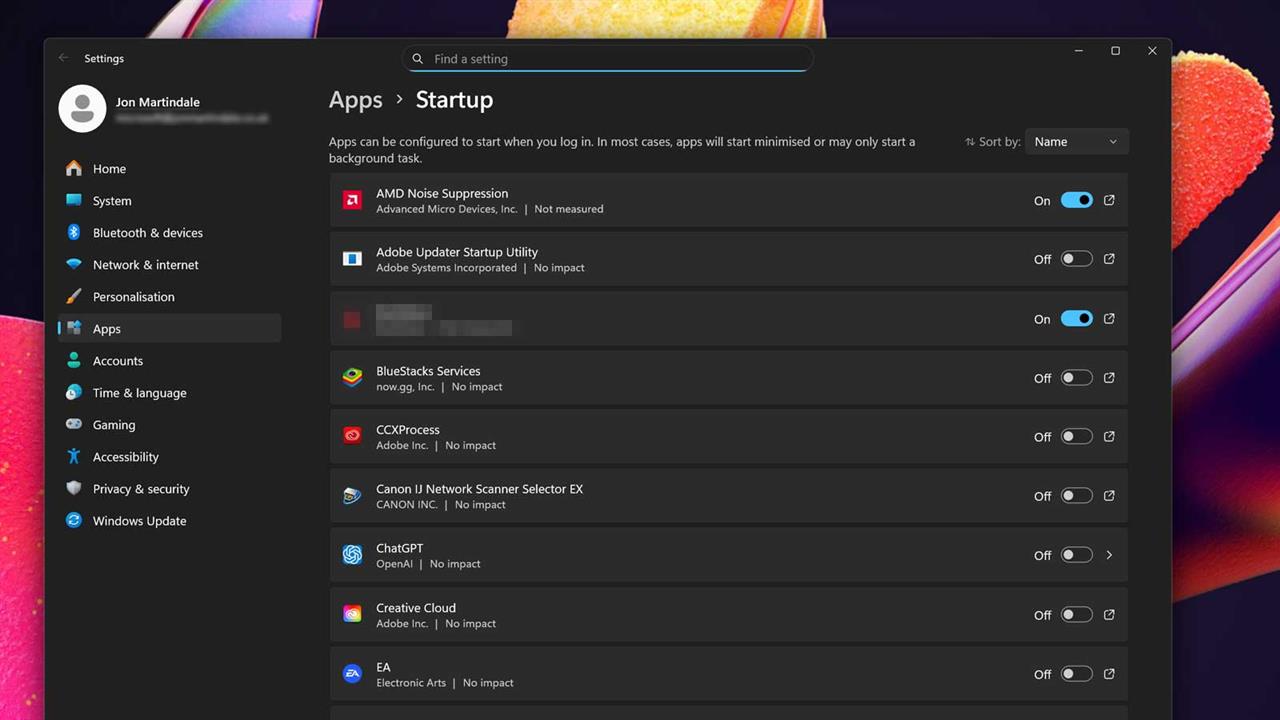
- Use Windows search to look for “Startup apps,” and select the corresponding result. Alternatively, navigate to Settings > Apps > Startup.
- Scroll through the list of applications and consider which apps should start up with Windows and which ones shouldn’t. Use the toggles on the right-hand side to turn On the apps that should start with Windows, and turn Off the ones that shouldn’t.
This check can also be performed through the Task Manager.
- Right-click the Taskbar and select Task Manager.
- Select the Startup apps tab on the left-hand side.
- Scroll through the list of applications to find any particular apps to be enabled or disabled.
- To enable an application to run at startup, right-click or tap and hold on it and select Enable. To disable an application from running when Windows boots up, right-click or tap and hold on it, and select Disable.
- The “Startup Impact” column is a great way to see what impact disabling or enabling the app may have on Windows startup. Greater impact means it has the potential to speed up or slow down Windows startup more, so consider them first if you’re looking to speed up Windows boot times; we’ll cover this feature more in the next section.
Windows 10
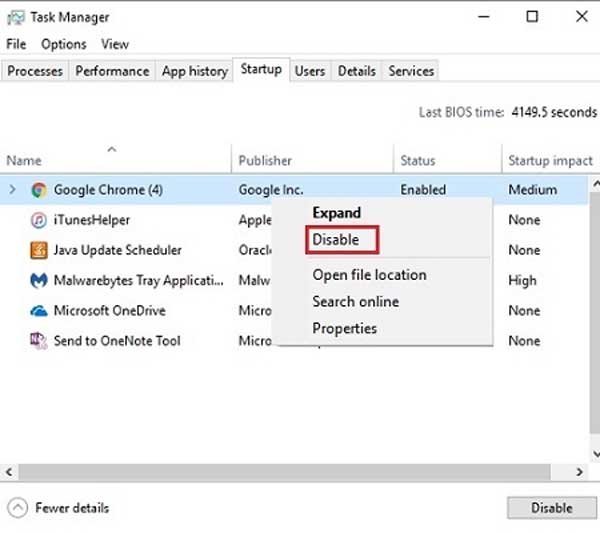
Source: Microsoft
- Right-click the Taskbar and select Task Manager.
- If necessary, choose More details to expand Task Manager and gain access to the additional tabs and menus.
- Select the Startup tab at the top of the Task Manager window.
- Scroll through the list of applications and look for any particular apps to be enabled or disabled.
- To enable an application to run at startup, right-click or tap and hold on it and select Enable. To disable an application from running when Windows boots up, right-click or tap and hold on it, and select Disable.
- The “Startup Impact” column is a great way to see what impact disabling or enabling the app may have on Windows startup. Greater impact means it has the potential to speed up or slow down Windows startup more, so consider them first if you’re looking to speed up Windows boot times; we’ll cover this feature more in the next section.
How to Enable and Disable Windows Services
Windows Services are specialized programs designed to run in the background of your operating system and handle many of the tasks of keeping the system running and all its various features connected. Not all of these are strictly necessary, though. Windows Update manager? Sure. Windows telemetry tracking data? Maybe not.
A quick note: it’s important to be particularly wary of disabling Microsoft services without first checking what they do. A number of them are integral to the Windows experience, and disabling them can break features you might rely on. Do a web search for what the service does before disabling.
Whatever your personal preferences on services, though, you can absolutely take control of them to make sure the ones running (and running at startup) are the only ones enabled.
Windows 11 & Windows 10
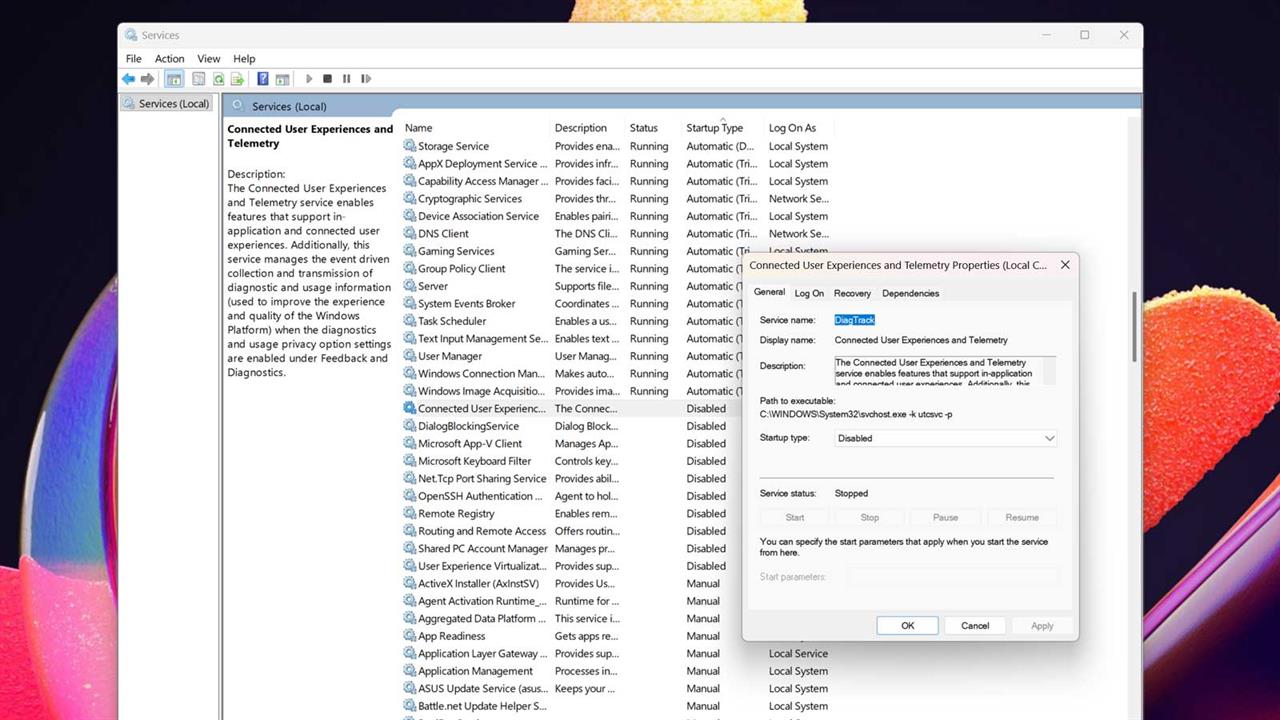
Source: Microsoft/Jon Martindale
- Use Windows Search to look for “Services,” and select the corresponding result. Alternatively, open the Run prompt with Windows Key + R, type in services.msc, and hit Enter.
- Scroll through the list of services and find the service that needs to be adjusted.
- Double click/tap the service or right-click and select Properties.
- To stop the service running immediately, select Stop. Alternatively, to start right now, select Start.
- To change how the service behaves at startup, use the “Startup type” drop-down menu. To have it start immediately when Windows boots up, select Automatic. To have it start up with Windows, but not immediately, select Automatic (Delayed). To only have it start when activated, select Manual. To fully turn off the service, select Disabled and it won’t start up without returning to the Services menu and re-enabling it.
- Once changes have been made, select Apply to finalize all updates, then select OK.
How to find where a startup application is launching from
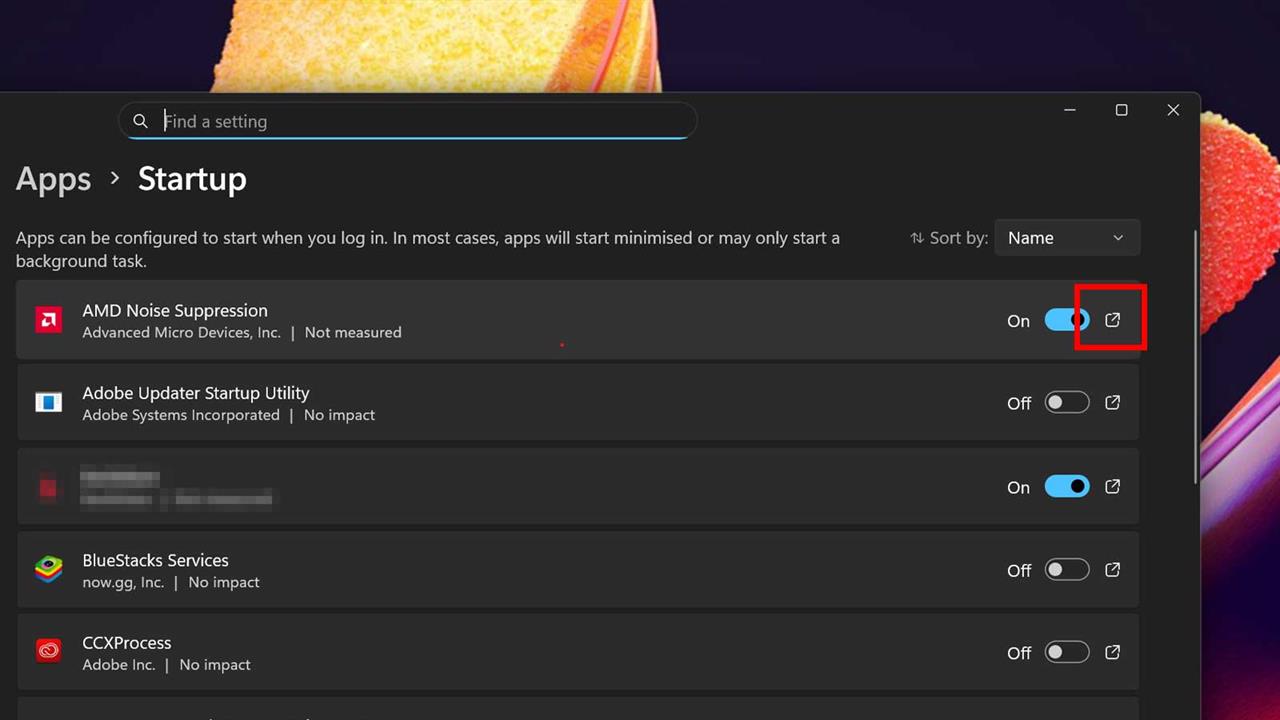
Source: Microsoft/Jon Martindale
If you’d like to modify an application that launches at Windows startup, create a shortcut for it, or just know where on your PC that app is located, you can find that out with a few clicks from the Startup app menu.
Windows 11
- Use Windows search to look for “Startup apps,” and select the corresponding result. Alternatively, navigate to Settings > Apps > Startup.
- Scroll through the list to find the specific application(s).
- Select the small icon on the far-right of the entry. It should look like a small box with a diagonal arrow pointing out of it. This will launch a new File Explorer window at the location of the application’s files.
The file is then accessible for changing. To take note of where the app is located, select the top navigation bar and it will switch to the File System menu. For example, C:\Program Files\LGHUB\system_tray. That extension can be used to quickly return to the file location; simply paste the link in the File Explorer navigation bar and hit Enter to be taken straight there.
Windows 10
- Right-click the Taskbar and select Task Manager.
- If necessary, choose More details to expand Task Manager and gain access to the additional tabs and menus.
- Select the Startup tab at the top of the Task Manager window.
- Scroll through the list to find the specific application(s).
Right-click the application and select Open file location. The file is then accessible for changing. To take note of where the app is located select the top navigation bar and it will switch to the File System menu.
And that is the quick way to get your Windows machine running a bit faster. Of course, digging into those settings can still be intimidating. If you have more questions about improving boot times, or if you just have worries about the health of your computer or device, our experts can help! Schedule an appointment with the Knowledge Bar by visiting our Services webpage.
More from MC News
Jon Martindale is a freelance technology journalist and writer from Gloucestershire, UK. He's written for a range of publications over a 20-year career, including DigitalTrends, USNews, Forbes, and Lifewire, among many others. Over that time he's written countless how-to guides, best-of lists, hands-on reviews, and in-depth op/ed features.
He has been building and working with computers since his teens, and loves nothing more than trying out the latest components and gadgets to see what they can do. When he isn't staring at a monitor, he can be found chasing after with his two young children, playing board and roleplaying games, or walking his French bulldog cross.