
A Complete Guide to Router Settings That Protect and Optimize Your Network


Image: Ubiquiti
Routers are often considered a set-it-and-forget-it device. You plug them in, connect to the internet, and you're done. Many people just leave it at that, and it's not the end of the world if that's what you've been doing, but know that there's more you could be getting out of your router—and it's all just a few quick setting tweaks away.
The problem with routers is that each brand has its own interface and some unique settings. Some brands, like Ubiquiti (known for its UniFi routers, among others), have a handy app or web-based interface to adjust router settings and monitor your connection.
Fortunately, no matter if your router came directly from your internet service provider (ISP) or you bought one of your own, chances are that you can make some good changes to improve your connection. In this guide, we'll walk you through the router settings that are actually worthy of your attention.
How to access your router's settings
Before we dig into the settings themselves, let's figure out how to find them. The exact path will vary depending on your router brand, so you may have to get a little creative and try a few different things before you get there, but it's not a challenging process.
Type the router's gateway IP into a browser
This is the most universal way, although some app-first routers and mesh systems can only be fully managed through the manufacturer's app.
Type the router's gateway IP into any browser of your choice. It's commonly 192.168.1.1 or 192.168.0.1 (some ISP gateways use 10.0.0.1); you'll usually find the exact address printed on the router label. If the label lists a setup URL instead, that works too; alternatively, run ipconfig in the Windows Command Prompt and look for the Default Gateway entry.
If you don't know what the login credentials are, they may be set to a default admin/admin, and if that's the case, that's one of the first things we're going to change today. Newer models generally print unique credentials on the label or ask you to create them during setup.
Use a manufacturer-specific app or web app
Many router manufacturers have their own apps that let you access the router. Ubiquiti's UniFi gear is managed through the UniFi Network application or the website. Netgear and Asus also have their own apps.
7 security settings that keep your home network safer
Most modern routers block unsolicited incoming connections by default, but that doesn't mean every router is secure right off the bat. Here are the settings worth looking into.
1. Change the default admin credentials (and add 2FA)
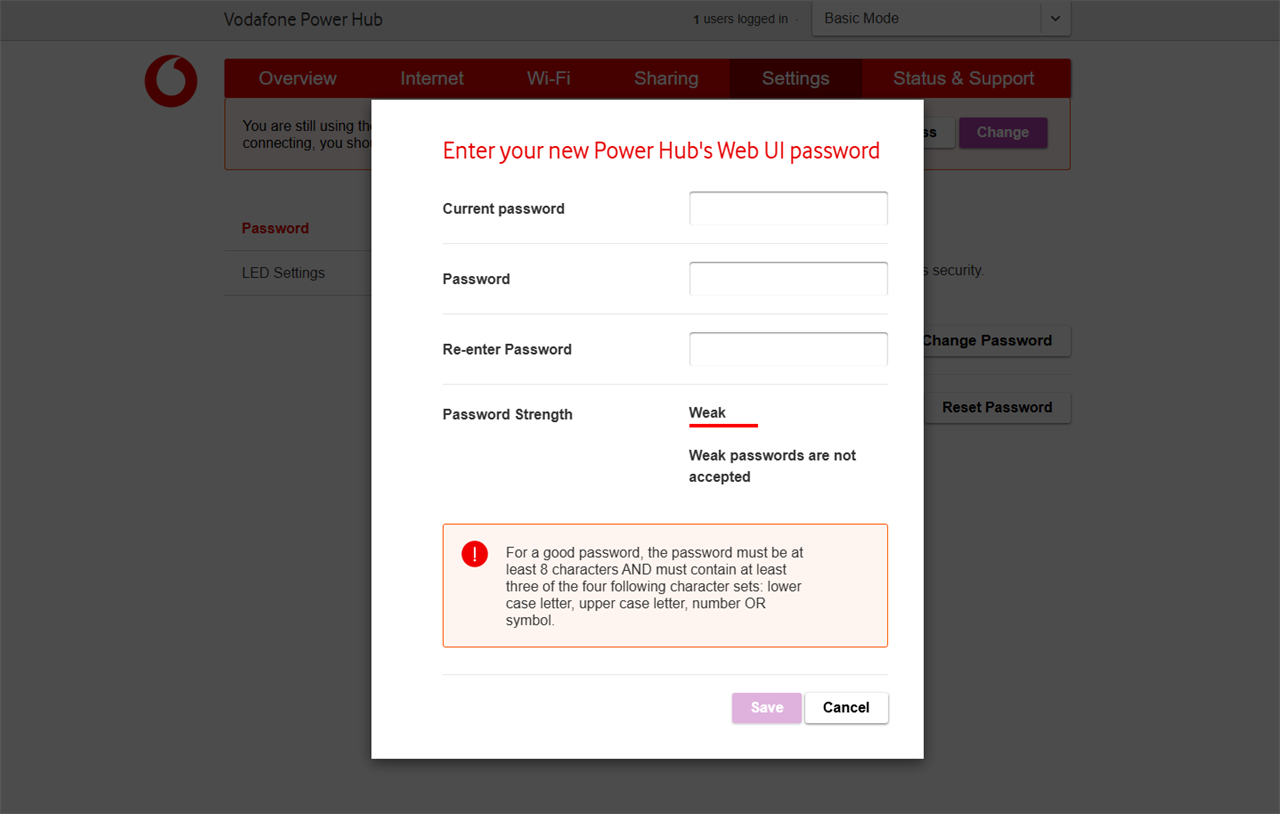
Your router has two passwords: the Wi-Fi password your devices use to connect, and the admin password that controls the router settings themselves. It's the second one that's easy to forget about. Default credentials are publicly documented for pretty much every router model out there, so anyone who can reach the login page can theoretically reconfigure your entire network.
Change it to something long and unique, and enable two-factor authentication (2FA) if your router supports it. Ubiquiti's UniFi gear ties remote management to a UI Account, and all of them are required to use multi-factor authentication.
Where to find it: To change the admin credentials, look under Administration, System, or Management in your router's interface. On Asus routers, it's under Advanced Settings > Administration > System; on Netgear, it's in the web interface or the Nighthawk app.
2. Use WPA3 encryption (or WPA2/WPA3 mixed mode)
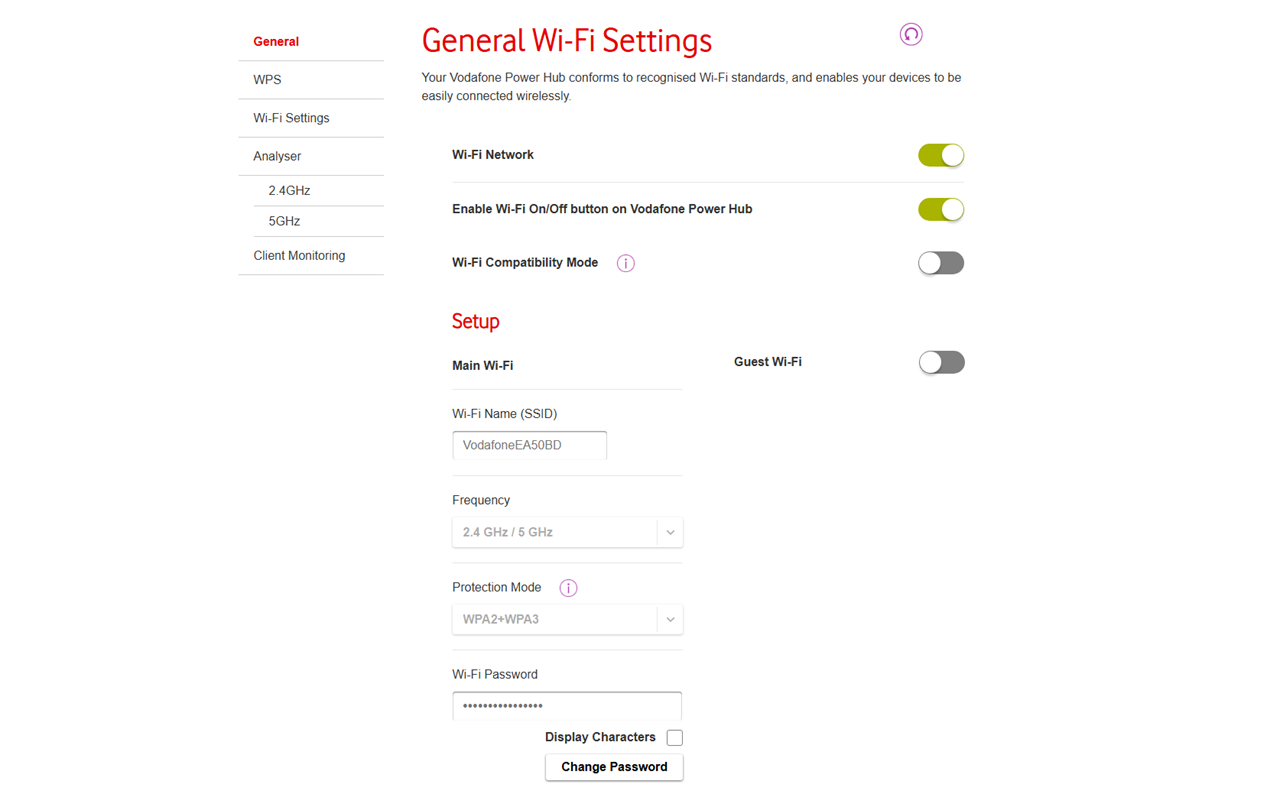
WPA (Wi-Fi Protected Access) is the encryption standard that scrambles the traffic between your devices and your router. This basically makes it so that anyone snooping on the airwaves sees gibberish instead of your actual data, so it's pretty important.
WPA3 is the current Wi-Fi security standard, and it fixes several weaknesses that were found in WPA2. If digging into the settings reveals that you're still running WEP or the original WPA, consider this your sign to change that.
The catch is that older devices, especially smart home gadgets, may not support WPA3 at all. WPA2/WPA3 mixed mode (sometimes called transition mode) is your middle ground for that situation.
Where to find it: Head to your router's wireless or Wi-Fi settings and look for the security protocol. On UniFi, it's under Settings > Wi-Fi, with the protocol options in each network's advanced settings.
3. Turn off WPS
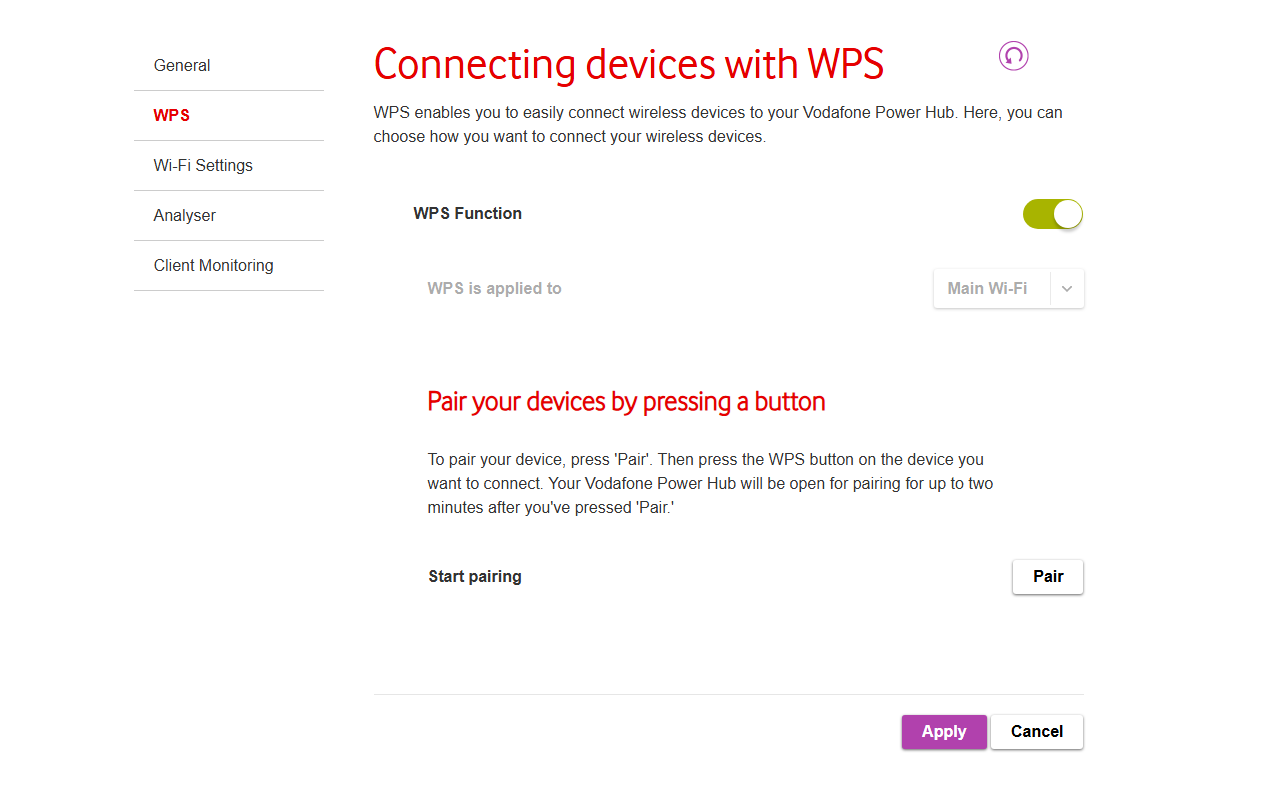
Wi-Fi Protected Setup (WPS) was designed to make it easier to connect devices to your router. All you have to do is press a button or enter an eight-digit PIN, and you're in. The problem is that the PIN can be brute-forced in a few hours, and that leaves your connection exposed.
There's essentially no downside to turning this off these days.
Where to find it: WPS lives in your wireless settings, usually around the security options. Some routers have separate toggles for the PIN and push-button methods, so make sure both are off.
4. Keep the firewall enabled and review UPnP and port forwarding
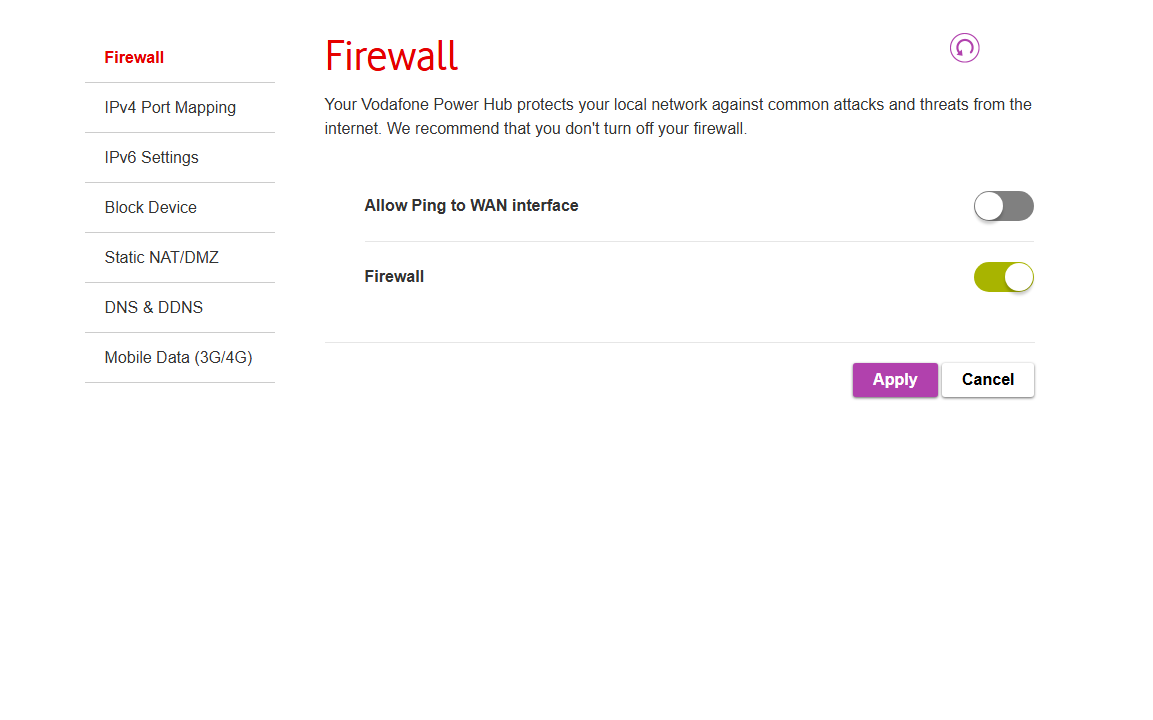
Your router's firewall does a lot of the heavy lifting in keeping your connection secure. It blocks unsolicited incoming connections, and it's on by default. Keep it that way and reap its benefits.
The thing to actually review here is Universal Plug and Play (UPnP). This lets devices on your network open ports in that firewall automatically without any authentication. It's convenient if you're a console gamer or you use peer-to-peer (P2P) apps, but malware can abuse this to open doors from the inside.
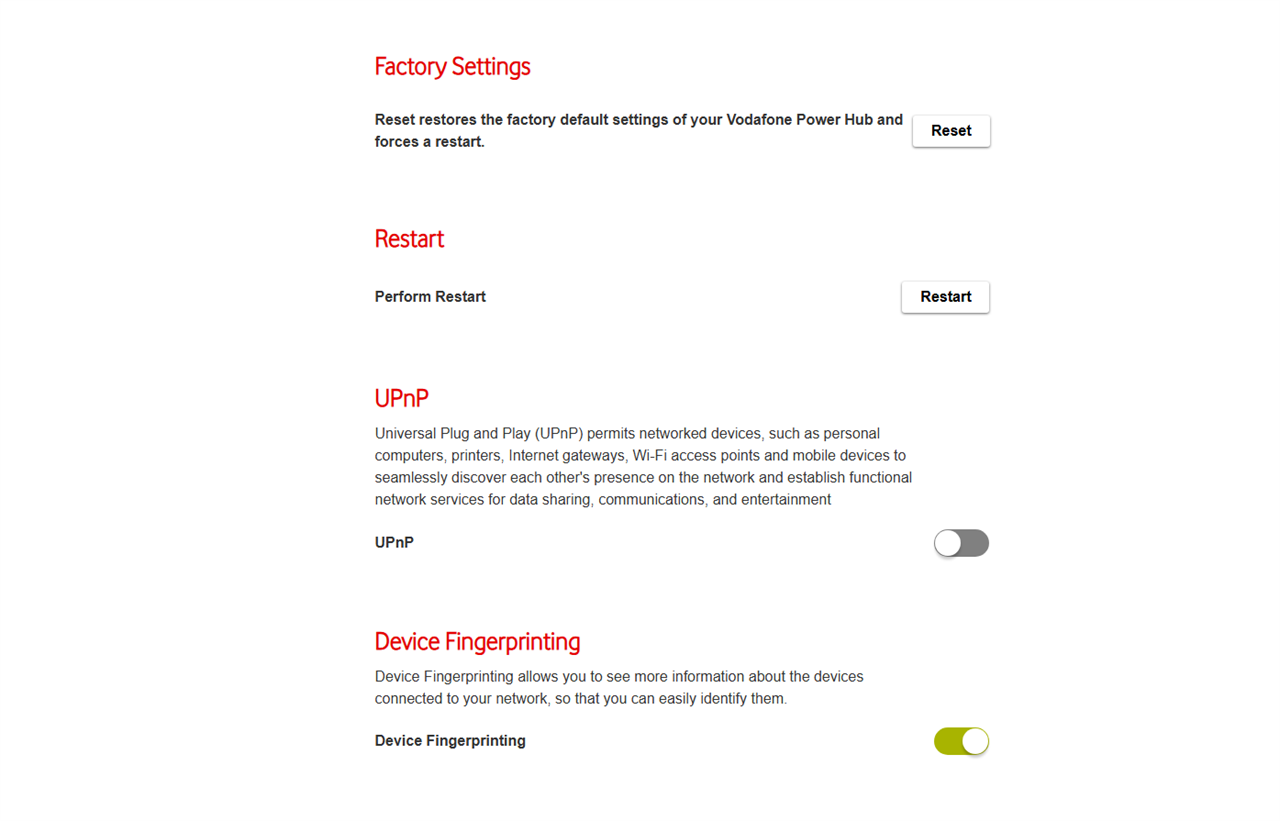
So, this one isn't a "must turn off" type of thing. Try disabling it and see if anything breaks; in most homes, nothing will. If a specific game or app needs an open port, forward that one port manually instead. While you're in here, delete any old port forwarding rules that no longer look familiar.
Where to find it: Firewall and UPnP settings usually live under Advanced, Security, or WAN settings.
5. Disable unnecessary remote management
This feature exposes your router's admin panel to the internet at large, and you most likely don't need that. Sure, it lets you log in from anywhere, but it also means that anyone who finds your public IP address can try to log in, too.
Combine it with a weak or default admin password (hopefully fixed after step one of this guide), and it's a direct path to a fully compromised network.
One distinction worth making here: cloud management platforms like Ubiquiti's UniFi Site Manager or the manufacturer apps from TP-Link and ASUS aren't the same thing. Those route through an authenticated account rather than exposing a raw login page to the internet.
Where to find it: Look for Remote Management, Remote Access, or WAN Access under your router's advanced or administration settings.
6. Set up a guest network, and consider one for smart home gear
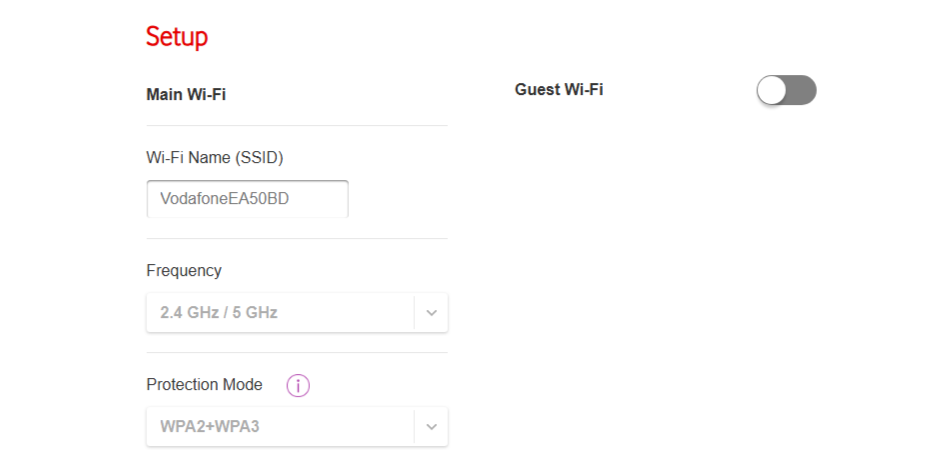
A properly isolated guest network gives visitors internet access without giving them access to your actual network.
The same logic applies to smart home devices. Budget smart plugs, cameras, and similar devices may not always have a stellar security track record, so if you shove them all onto their own network, you won't have to worry about it reaching your main devices if one of them gets compromised.
This is an area where some routers do better than others. UniFi, for instance, lets you build separate virtual networks (VLANs) with a one-click Network Isolation option, plus client device isolation that stops devices on the same network from talking to each other.
Where to find it: Most routers have a guest network toggle right in the wireless settings, often with its own name and password fields.
7. Keep firmware updated, automatically if possible
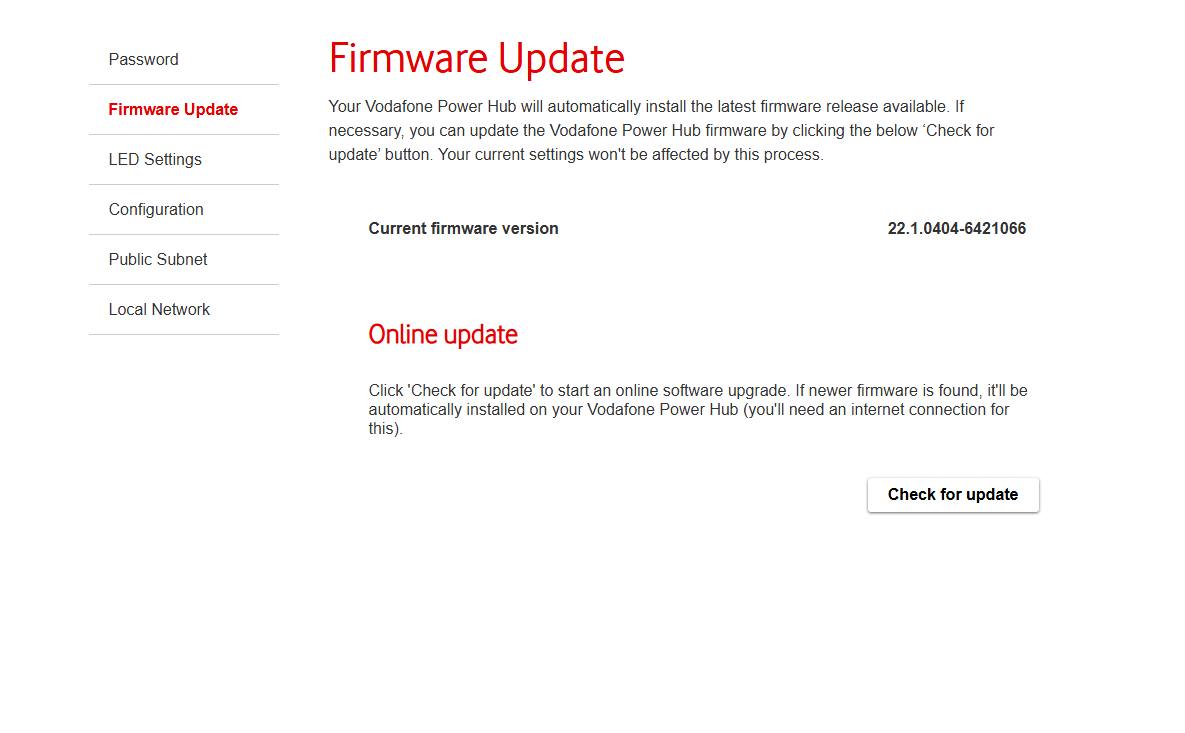
Be honest: When was the last time you updated your router's firmware? If the answer is "never," you're not alone. Fortunately, firmware updates aren't a huge hassle, and they're well worth looking into.
These updates patch security holes that are known, documented, and actively exploited. An unpatched router is exactly the kind of low-effort target automated attacks look for. If your router offers automatic updates, enable them and pick a time when nobody's using the internet.
Where to find it: Firmware settings are typically under Administration, System, or Maintenance.
5 performance settings that help you make the most of what you're paying for
Now that your connection is extra-secure, why not look into some performance improvements?
1. Pick the right Wi-Fi channel
Your Wi-Fi bands are split into channels, and if your router sits on the same channel as your neighbors, everyone's traffic competes for that same slice of airtime. This is one of the most common reasons Wi-Fi feels slow in apartments and dense neighborhoods.
The 2.4GHz band is typically the crowded one. In the United States, only channels 1, 6, and 11 don't overlap with each other, so those are the standard choices. The 5GHz and 6GHz bands have far more room, which is why auto-selection usually does a decent job there.
Most routers default to auto channel selection, and that's usually fine. But if your Wi-Fi slows down at predictable times, such as when everyone gets home from work or school, it's worth picking a quieter channel manually. Free phone apps like Wi-Fi analyzers can show you the local congestion, and UniFi users get this built in.
Where to find it: Look through your router's wireless settings, usually per band.
2. Set a sensible channel width
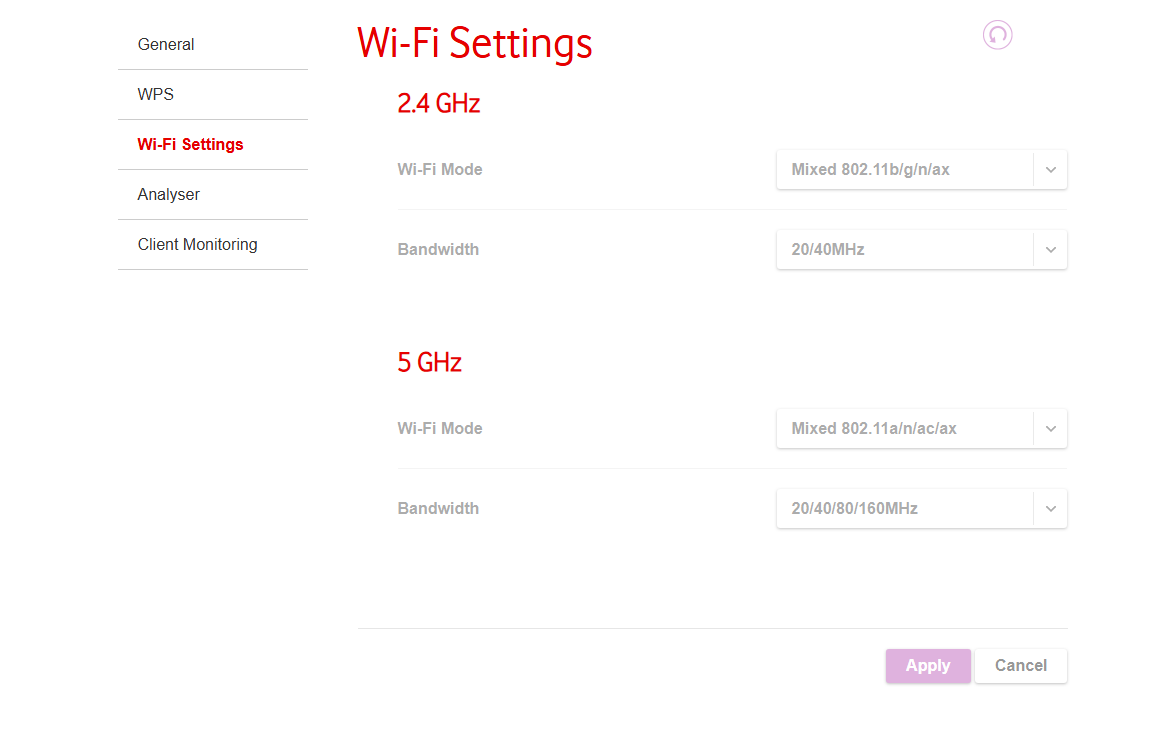
Next, let's look at channel width. This determines how big a slice of the wireless spectrum your router is entitled to at once. Wider channels can move more data, so it's tempting to just crank this one all the way up, but wider channels are also more prone to interference and effectively give you fewer non-overlapping options to choose from.
This is the kind of setting you may have to play around with and see what works well for you. The sensible defaults are 20MHz on the 2.4GHz band, and 80MHz on 5GHz. Widths of 160MHz and beyond are best saved for the 6GHz band or for homes without much wireless competition nearby.
If you set a wide channel and your internet speeds get inconsistent, go back to a narrower one and see if that helps.
Where to find it: Channel width sits right next to the channel selection in your wireless settings, configured per band.
3. Enable band steering (with another caveat)
Band steering nudges devices that support faster bands off the congested 2.4GHz lane and shoves them onto 5GHz. Some devices tend to cling to the 2.4GHz band with a shocking degree of stubbornness when a much faster connection is sitting right there, and this setting essentially gives them a little push in the right direction.
But there's a caveat. Some smart home devices and older clients dislike being steered, and you may see devices flip-flopping between bands or dropping connections. If that happens, turn this setting off and let your devices decide for themselves.
UniFi supports band steering per network, and Ubiquiti generally recommends leaving it enabled, with the same disclaimer: if things get weird, this is one of the settings to toggle off when you troubleshoot.
Where to find it: Look in your wireless settings, sometimes under advanced Wi-Fi options.
4. Use QoS only when congestion is the problem
Quality of Service (QoS) manages how your bandwidth gets shared when the connection is full. Latency-sensitive traffic gets priority, and the less important stuff waits its turn when you use QoS.
One thing to be clear about, though. QoS isn't going to make your internet faster; it just makes it consistent under load.
If your connection is rarely saturated, you won't notice any difference, and there's a real trade-off to enabling QoS. On UniFi gateways, for example, turning on Smart Queues or QoS rules disables hardware offloading, which can lower your maximum throughput. That's why Ubiquiti recommends Smart Queues only for connections below 300Mbps.
If you do enable this setting, set the upload and download limits around 10-15% below your actual ISP speeds, then run a bufferbloat test. You can use Waveform for this; it's free.
Where to find it: QoS is usually found under advanced or traffic settings.
5. Adjust transmit power
It seems intuitive that maximum transmit power means maximum coverage, but Wi-Fi is actually a two-way conversation.
Your router might shout loud enough to reach all the way across the house, but your phone's much weaker radio may not be able to shout back, so you end up with full signal bars and a connection that barely works.
For a single-router home, auto is usually the right call, and this isn't a setting worth agonizing over. It becomes genuinely useful in homes with multiple access points, where lowering the power encourages devices to roam to the nearest AP instead of clinging to a distant one. UniFi access points can be set individually or managed automatically, making this easier to do.
If you've been fighting a losing battle against dead zones, resist the urge to solve it with raw power. An extra access point or a mesh node in the right spot may be a better solution.
Where to find it: Transmit power is under advanced wireless settings, usually per band, with options like auto, high, medium, and low.
That about sums it up for some of the most important router settings that are worth knowing about. For many of the performance-related settings, our advice is to experiment and see whether it helps. The security-based settings are generally considered good practice and worth adjusting as advised.
Not sure which router works best for your home, or which settings will help you make the most of it? Micro Center's experts can answer all your questions and guide you. Set up an appointment with the Knowledge Bar on our Services page or simply visit your local Micro Center today.
More from MC News
- Run AI Locally: The Best LLMs for 8GB, 16GB, 32GB Memory and Beyond
- Quantization Explained: Why the Same LLM Gives Better Results on High-End Hardware
- Why Context Length, Not AI Model Size, Is Your Biggest VRAM Problem
- How to Use LM Studio to turn your PC into an AI Server
- Why VRAM and Memory Bandwidth are Key for Powering Local AI
- Keyboard 101: Intro to Computer Keyboards
- Fix It Yourself: Talking to iFixit on Why Repairable Tech Matters
- The Local LLM Your Laptop's Been Waiting For
- Gemma vs Qwen: Which Local AI is Best?
Monica J. White is a tech journalist who specializes in PC hardware. She built her first PC over 20 years ago and has spent over a decade covering every aspect of DIY PCs, prebuilts, laptops, peripherals, cybersecurity, and AI. Her work has been published in TechRadar, Tom’s Guide, PC Gamer, How-To Geek, SlashGear, Digital Trends, Tom’s Hardware, and Laptop Mag.