

Why Context Length, Not AI Model Size, Is Your Biggest VRAM Problem

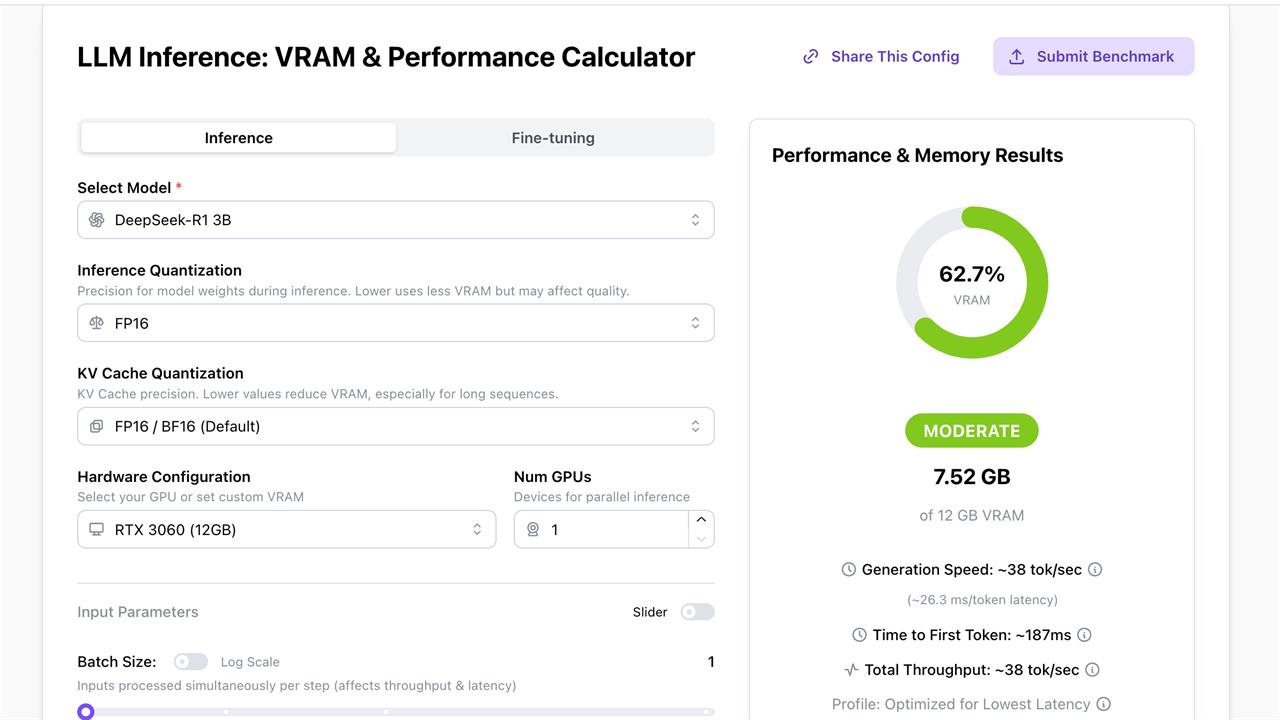 Screenshot: Dan Ackerman
When shopping for local AI models to match their hardware, most people focus on the base amount of VRAM recommended by community benchmarks like Hugging Face.
That works fine for shorter single-prompt conversations. But what happens when you upload a large document or run deep into a coding session?
For running a popular model like Llama 3.1 8B, benchmarks suggest a minimum video memory of 4 GB-16 GB. But when using its full context window while at the highest precision level, the same model can eat up 50% more VRAM during runtime.
That's why you need to look beyond model size and weight to account for context length, measured in AI models by something called the KV cache. It takes five minutes to understand what KV cache is, but learning about it now will save you hours of confused troubleshooting down the line.
What is the KV cache and why does it eat your VRAM?
At this point, you may already know that AI models like LLMs measure data in units called tokens.
When a model processes your conversation, it also computes vectors called "key" and "value" for every token that it sees. Then rather than recompute those vectors from scratch with each new message, it stores them in memory.
That stored set of vectors is the KV cache, which makes it possible for models to run conversations across multiple prompts and responses while retaining its chat history. So, the size of that cache increases with each new file or prompt added to a conversation.
Think of it as a scratch pad that the model writes to as the conversation unfolds, never erasing. A short exchange barely leaves a mark. A long session fills the pad, then keeps stacking on to your GPU's memory until your VRAM gives.
For example, a Llama 3.1 8B model loaded at Q4_K_M takes about 4.9 GB of VRAM. Run it at a 32K context window though and the KV cache adds roughly 4.3 GB on top, pushing total usage past 9 GB. That's more than an 8 GB GPU can hold, thanks to the added context from your active conversation. This is one of the most common and least-discussed pain points in local AI.
Things that affect your KV cache size
Four variables determine how much VRAM your KV cache consumes. These are your model layer count, the number of KV heads used by the LLM, context length in tokens, and cache data precision (fp16 by default in most tools).
Here's a straightforward explanation of each:
Layer count
Think of layers as the number of processing stages the AI model runs your text through. A 7B model typically has 32 layers, a 70B model has 80. More layers means the model stores more key-value pairs per token, so a larger LLM fills the KV cache faster even at the same context length.
Number of KV heads
Instead of processing your text as one big block, the model splits its attention across parallel "heads," each tracking different patterns and relationships in the text. The KV cache has to store data for every one of those heads, so more heads means a bigger cache. Think of it as the difference between one person taking notes on a conversation versus a whole team doing it simultaneously.
Context length in tokens
This is the most direct variable you control. Every token you add to your context window adds another row to the KV cache across all layers and heads. Roughly speaking, doubling your context length doubles your cache memory, which is why jumping from 8K to 32K context has such a dramatic impact on VRAM usage.
Data precision
By default, most tools store the KV cache in fp16 or at 16 bits per value. But, dropping to 8-bit (q8_0) or 4-bit (q4_0) storage can cut down memory usage. It's like compressing a photo, where you're basically sacrificing the level of detail in your cache memory to save space.
Context memory by the numbers
There's a standard formula that can be applied to determine the KV cache size of any large language model:
KV cache size = 2 ✕ number of layers ✕ number of kv heads ✕ head dimension ✕ token length ✕ bytes per value
Hugging Face model cards always list variables like layer count, KV head count, and head dimension if you need to calculate the KV cache manually.
Pre-calculated context budgets for popular models
If all those variables seem too much, I've prepared a table that shows how VRAM usage scales across four popular AI models at different context lengths.
Note that all figures assume fp16 KV cache and Q4_K_M quantized weights. All these KV values are then derived from each model's published architecture using the standard KV cache memory formula mentioned earlier.
| Model | Quant | Model Load | KV @ 4K | KV @ 16K | KV @ 32K | KV @ 64K | KV @ 128K | Max VRAM Consumption |
|---|---|---|---|---|---|---|---|---|
| Llama 3.1 8B | Q4_K_M | ~4.9 GB | ~0.5 GB | ~2.0 GB | ~4.0 GB | ~8.0 GB | ~16.0 GB | ~21 GB total (at 128K) |
| Mistral 7B v0.3 | Q4_K_M | ~4.4 GB | ~0.5 GB | ~2.0 GB | ~4.0 GB | Not supported | Not supported | ~8.4 GB total (at 32K) |
| Qwen2.5 14B | Q4_K_M | ~8.9 GB | ~0.75 GB | ~3.0 GB | ~6.0 GB | ~12.0 GB | ~24.0 GB | ~33 GB total (at 128K) |
| Llama 3.1 70B | Q4_K_M | ~43 GB | ~1.25 GB | ~5.0 GB | ~10.0 GB | ~20.0 GB | ~40.0 GB | ~83 GB total (at 128K) |
As you can see, running with the full 128k context window at fp16 precision, Llama 3.1 70B consumes a whopping 83 GB VRAM. That puts it squarely in the territory of multi-GPU or Apple M3 Max+ setups.
Moreover, real-world VRAM usage runs 15-25% higher due to other technical factors like runtime overhead, activation memory, and CUDA context. So you should budget at least 0.5-1 GB higher VRAM for framework overhead in practice.
Free calculators that do the math for you
If you don't fancy running the numbers manually for each model, there are also free tools that can do it for you:
- LMCache KV cache calculator: Select a model and precision type, this tool computes cache size by token count for you.
- APXML VRAM calculator: Factors in model load and KV cache together, with sliders for quantization, context length, and concurrent users. This utility covers both NVIDIA GPUs and Apple Silicon.
- llama.cpp verbose logging: Run your server with --verbose and look for the kv_cache_init line in the output. It tells you exactly how many MB are reserved for the KV cache at the context size you've set.
Hardware can give you more context headroom
More VRAM means more room for the KV cache to grow, but not all hardware handles long-context work the same way.
On discrete GPUs, capacity is the first thing to check. Cards with 16 GB or more (like the RTX 4080 Super, RTX 4090, RX 7900 XTX, etc.) give you enough headroom to run 32K-64K context on 7B-8B models without changing any settings. Below that threshold, you're relying on an optimization technology called KV cache quantization to stretch what VRAM you have.
That said, Apple Silicon deserves particular attention here. Because GPU and system RAM share the same pool on M-series chips, the KV cache can grow into your full system memory allocation rather than being capped by the VRAM budget. An M3 or M4 Max with 64-128 GB of unified memory can sustain very long contexts on models that would simply be impossible to run at that length on a consumer GPU.
Multi-GPU setups are another thing worth considering if you're already running two cards. Pooling VRAM across a pair of RTX 3090s, for example, directly doubles your available context ceiling with no other changes required.
CPU offloading through llama.cpp is also technically an option when VRAM runs out, but treat it as a last resort. Pushing KV cache layers to system RAM keeps the session alive, but the speed penalty is steep enough that it's only practical for feeding in a long document and asking a single question, not for anything interactive.
If long documents or extended sessions are central to how you use local AI, investing in VRAM pays off more directly here than on almost any other hardware upgrade.
To put it in practical terms, an 8 GB GPU can handle short chat sessions comfortably but will struggle once you're summarizing anything longer than a few pages. A 16 GB card is where sessions start to feel properly useful. It's long enough to drop in a full article, hold a research conversation, or work through a codebase without hitting a wall.
| Hardware | VRAM / unified RAM | Comfortable context (7B-8B) | Comfortable context (13B-14B) |
|---|---|---|---|
| 8 GB GPU (e.g., RTX 4060) | 8 GB | ~8K | Not practical |
| 12 GB GPU (e.g., RTX 4070) | 12 GB | ~32K | ~8K |
| 16 GB GPU (e.g., RTX 4080 Super) | 16 GB | ~64K | ~24K |
| 24 GB GPU (e.g., RTX 4090) | 24 GB | ~128K | ~64K |
| Apple M3/M4 Max (64 GB) | 64 GB unified | Full context (128K+) | Full context (128K+) |
KV cache quantization: half the memory, almost no quality loss
Before you reach for a hardware upgrade, though, try flipping this one setting.
llama.cpp (and tools built on it like Ollama and LM Studio) lets you store the KV cache in q8_0 instead of fp16. That cuts cache memory roughly in half. Dropping to q4_0 takes it to about a quarter of the original size, freeing enough VRAM to run 32K context on hardware that would otherwise cap out at 8K.
How to enable it
- llama.cpp: Add --cache-type-k q8_0 --cache-type-v q8_0 when launching the server; swap in q4_0 for maximum compression.
- LM Studio: Available as a dropdown in the model configuration panel since version 0.3.7.
- Ollama: Set the OLLAMA_KV_CACHE_TYPE environment variable before running a model (e.g., OLLAMA_KV_CACHE_TYPE=q8_0).
Does it hurt quality?
Minimally at q8_0. Community testing and the KIVI research paper both show that q8_0 KV cache produces output nearly identical to fp16 across most tasks. The q4_0 setting shows slight degradation on complex multi-step reasoning, but is acceptable for general chat and summarization.
For everyday tasks, q8_0 KV cache quantization is one of the best returns on a free setting change you'll find in local AI. It's the first thing I enable on any GPU with less than 12 GB of VRAM.
Similar tools and features
llama.cpp isn't the only place where optimization exists. Other runtimes have comparable controls and some models reduce KV cache size at the architecture level even before you've changed any setting.
- ExLlamaV2 (the backend behind TabbyAPI and text-generation-webui) supports Q4, Q6, and Q8 KV cache modes. It's all configurable through TabbyAPI's cache_mode setting or via --cache_4bit and --cache_8bit flags in text-generation-webui.
- vLLM supports FP8 KV cache quantization via the kv_cache_dtype parameter, more relevant for self-hosted inference servers than desktop setups.
- Grouped Query Attention (GQA) and Multi-Query Attention (MQA) are architectural features baked into models at training time. Llama 3.1 and Mistral use GQA, which reduces KV head count by design and shrinks the cache without any runtime setting. Not something you configure, but it's worth checking on a model card when comparing two similarly sized options for long-context work.
The takeaway
VRAM is responsible for more than just loading a model. It's also necessary for running that model at the context length you actually need. Check your model's architecture and budget for the KV cache before you hit a VRAM wall, and enable q8_0 quantization before you start shopping for a new GPU.
Future runtimes may handle more of this automatically. But right now, knowing these numbers is the difference between a session that works and one that doesn't.
More from MC News
- Run AI Locally: The Best LLMs for 8GB, 16GB, 32GB Memory and Beyond
- Quantization Explained: Why the Same LLM Gives Better Results on High-End Hardware
- Why VRAM and Memory Bandwidth are Key for Powering Local AI
- Keyboard 101: Intro to Computer Keyboards
- Fix It Yourself: Talking to iFixit on Why Repairable Tech Matters
- The Local LLM Your Laptop's Been Waiting For
- Gemma vs Qwen: Which Local AI is Best?


