
What Is a Docking Station and How to Set It Up?
Docking stations can make laptop use easier than ever. But how do you know if you need one, and how do you set it up?How-To

The best thing about modern laptops is their portability. You can take a very powerful and capable machine anywhere you want and still have almost all the abilities of a full-size desktop, with arrays of ports and connections to connect to all sorts of external accessories. But as capable as the latest machines are, and some of them really do have impressive arrays of ports, there’s still only so many you can fit on a single machine. That’s where laptop docking stations come in.
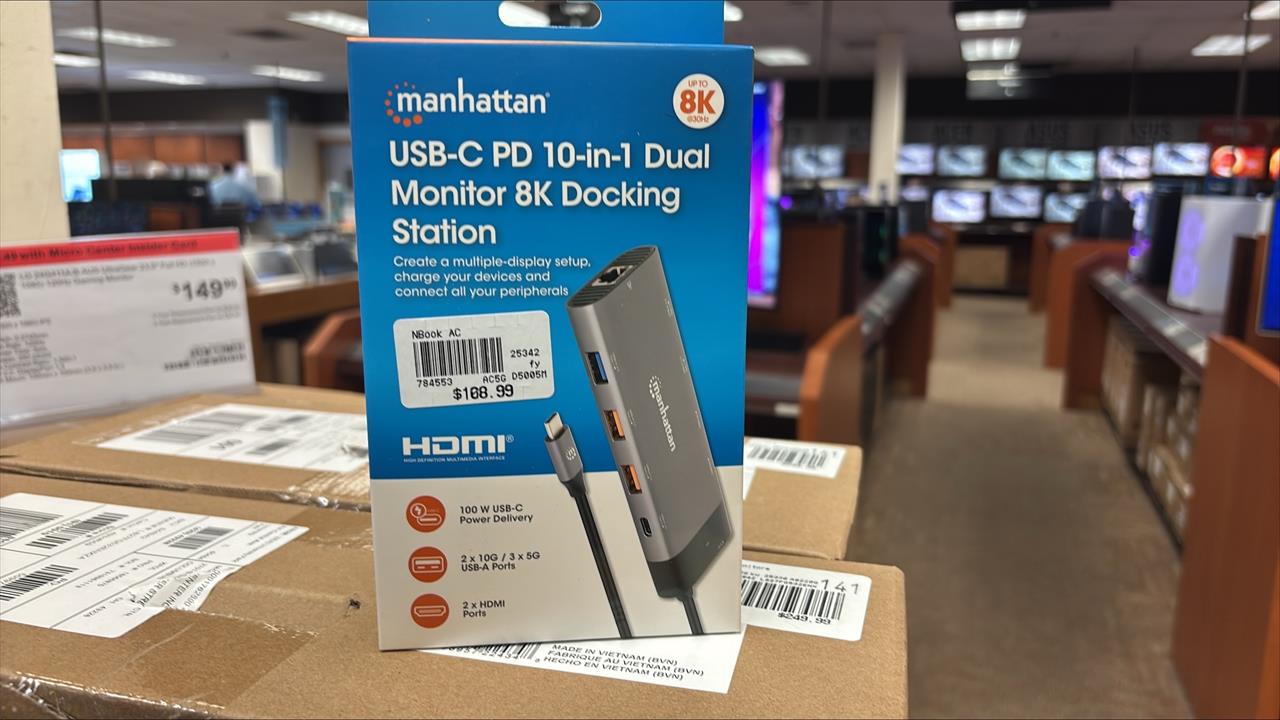 Photo: Adam Rex
Docking stations bring the expanded functionality of a desktop computer to laptops of any shape and size. These compact devices sit on a desk and absolutely bristle with ports and connections; they are a fantastic option for those who tend to use their laptop in a fixed location. It gives users all the ports they need for peripherals, including external computer monitors, desktop mice and keyboards, headphones, webcams, and more. It can also help keep all devices charged and improve compatibility in office settings with bring-your-own-device (BYOD) policies.
In short, docking stations are a great fit for remote or hybrid workers, creative professionals, power users with multi-device setups, and anyone who wants to make their laptop more capable without having to replace the laptop.
What Is a Docking Station?
Docking stations are like larger, more capable USB hubs. They’re desk-mounted devices with a variety of ports and connections which are connected to a laptop. Anything plugged in to the docking station will be connected to the laptop in turn, once connected. That makes it easy to set up multiple monitors with a mouse and keyboard in the office, and then, when it’s time to bring the laptop in for a day of work, simply plug it into the docking station and you’re already connected, no need to dig around the floor for cables and connections to various devices. Colleagues, too, can just plug their laptop in, making desk sharing easier and more streamlined.
Docking stations always come with an array of port options, though the specifics change between models. The smallest and most modest of docking stations may only offer a few USB-A and USB-C ports and an SD card reader. In comparison, the largest and most capable may have multiple HDMI 2.1 and DisplayPort 2.1 ports, additional Thunderbolt 4 or 5 connectors, USB4 support, high-wattage USB power delivery, and Ethernet connectivity, among other options.
Types of Docking Stations
Traditionally, docking stations differentiated themselves from standalone port hubs by offering some kind of bespoke of mechanical connection to the laptop. These were often first-party solutions from the likes of Dell or HP and designed to work with their workstation laptops. With the growth of USB-C, however, those kinds of classic designs aren’t as common and the line between hubs and docking stations has become blurred to the point of almost non-existence.
Although many of the laptop brands still have their own first-party docking stations, most docks today are universal designs that work with most laptops. What differentiates them is their port selection, power delivery capabilities, and portability.
Desktop docking stations tend to offer the greatest selection of ports but they’re also bigger, heavier, and usually require some kind of DC power connection to an outlet. They’re designed to remain in a single, static location, connected to peripherals like mice, keyboards, displays, and printers. Simply attach a laptop to the docking station and use all of its capabilities via the connected devices.
Portable docking stations tend to travel with the laptop, enhancing its capabilities wherever it goes. That can mean giving the laptop the ability to connect to displays, which can in some cases power the docking station (perhaps with pass-through charging for the laptop) or it can be powered via a USB charger. The most compact docking stations can often be powered by the laptop itself, further blurring that line with USB hubs.
Who Should Use a Docking Station?
Docking stations are a useful tool for expanding a laptop’s capabilities and giving even the leanest of laptops a wide range of ports to use. But they’re not for everyone. If you don’t need an external monitor or keyboard, if your laptop has plenty of ports already, or you keep greater separation between your work and home devices, then a docking station probably isn’t going to change that much.
There are some though, for whom a docking station can be a real game changer.
Remote and Hybrid Workers
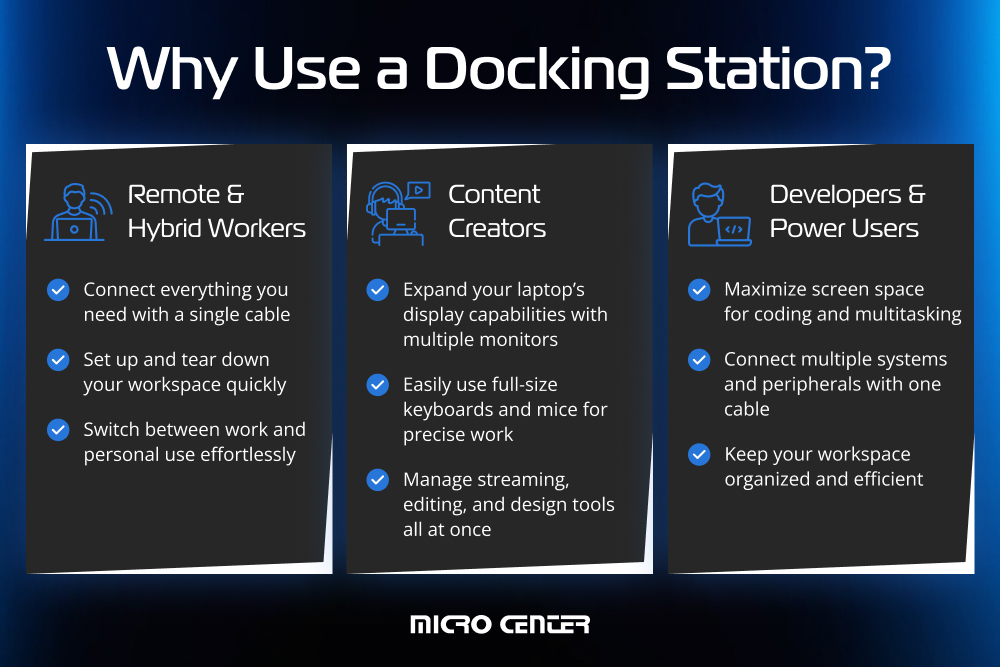
For those working from home and especially those who split work between home and an office, a docking station can make the world of difference. A docking station can be set up as a personal work space with all the tools needed to get the job done effectively and efficiently. And, once it’s done, the laptop can simply be disconnected and used casually for entertainment after the work day is done.
With a docking station, everything needed for work can be connected with a single cable. That speeds up getting started in the morning, accelerates tear down time in the evening, and makes remote and hybrid work settings more straightforward to use.
Content Creators
Modern laptops can often support at least one external monitor, but not all of them can natively support more than one. Content creators are one type of modern worker who can benefit greatly from using larger and multiple external monitors, so they are one of the best candidates for a docking station.
If you’re a streamer, multiple displays are an absolute necessity. One monitor for content, another screen for chat, maybe another for managing editing tools and volume levels and effects. Graphic designers and 3D CAD workers need access to web browsers and their design tools simultaneously; perhaps a cheeky chatbot on the side.
All of that is far easier with multiple monitors and docking stations are fantastic for expanding a laptop’s innate display capabilities. They also make it easier to use full size desktop peripherals like mice and keyboards too, which can be a real game changer for design work where mouse accuracy cannot be trumped.
Developers and Power Users
Programmers and developers need heaps of screen space too, and, as big as modern laptops are, they don’t really cut it for peak productivity. The same goes with the built-in keyboard and touchpad, too. A capable docking station can unlock all the extras that power users and professionals can really benefit from, no matter what laptop they’re using.
For system admins managing multiple systems at once, perhaps wanting to connect to different networks simultaneously, a docking station makes that much easier to do with a single workstation laptop. No need to keep swapping cables or peripherals: It’s just a single cable connection to everything needed.
That goes doubly so for developers and power users who are also remote or hybrid workers. If you normally manage everything at a distance, but need to swing by the office sometime for on-sight fixing, using a docking station can be invaluable. It keeps the workspace clear and tidy with a single cable connection (especially when combined with cable management solutions), and makes it so the user can get up and running quickly with all of their powerful on-site tools and peripherals.
How to Set Up a Docking Station
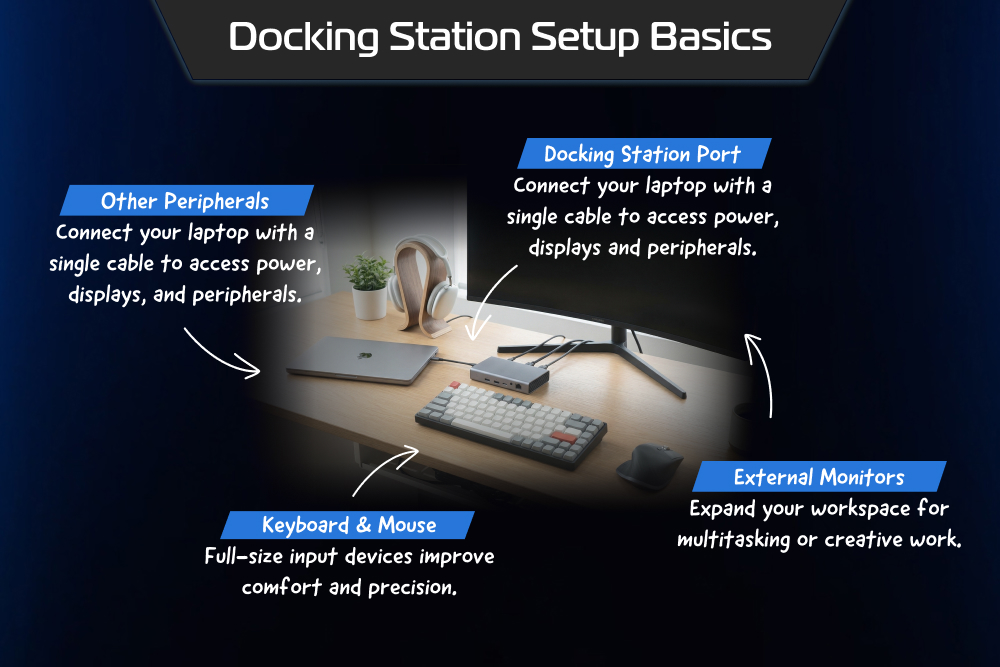
One of the best aspects of modern docking stations is how easy they are to use. As long as it’s compatible with your system (and we’ll show you how to check that, below) you can just plug a laptop in, install the drivers, and connect all the devices and peripherals you want to use to the docking station.
Here’s how to set up a docking station.
Check Compatibility
Some first-party docking stations from certain companies include proprietary connections, so unless a docking station is listed as being “Universal,” make sure to only use first-party docking stations with the same brand of laptop. For everything else, though, check that the laptop supports the same generation of connection as the docking station to enjoy its full functionality.
If the docking station is Thunderbolt 3, 4, or 5, make sure that the laptop supports that respective version. The same goes for USB4. If it’s listed as a “USB-C” docking station, then it’s just important that the laptop has a USB-C connection (USB-A to USB-C cables are unlikely to work in the same way). If it’s a docking station designed to give external monitor support, make sure any source USB-C connection supports DisplayPort Alt Mode otherwise you may not be able to use an external display with that dock.
Check operating system support, too. Although most docks will support Windows and macOS, not all of them will support all versions, and not every dock has available Linux or Chrome OS.
Connect Peripherals
Once the laptop and docking station are confirmed fully compatible, it’s time to plug in everything else. Plug in any peripherals like mice, keyboards, printers, webcams, external storage drivers, and headphones to the available USB ports. Connect any external monitors to the output video ports, whether that’s HDMI, DisplayPort or USB-C. Also consider Ethernet connections for wired internet connection.
Once they’re all plugged in, connect the docking station’s power cable, plug it into the wall or appropriate alternative outlet, and if necessary, turn it on.
Connect the Laptop
Next, connect the laptop to the dock. Usually this will be a USB-C connector, but with some first-party docks it can be proprietary, and older docks may use a USB-A connector. It can be a specific kind of USB-C connector, too, such as USB4 or Thunderbolt 3/4/5. In that case, be sure to connect it to a port that supports the docking station’s maximum performance.
If all the laptop ports are fast or you’re not too concerned about maximizing bandwidth, consider plugging it into the laptop port that is the most convenient for you.
Configure Display and Audio Settings
If one or more external displays is being connected, video settings will need to be configured properly. On Windows, navigate to Settings > System > Display, and select the secondary (and tertiary, if necessary) displays. Make sure their resolution and refresh rates are set correctly, and choose whether to extend (opening up more desktop real estate) or duplicate them (show one desktop across multiple monitors).
Some older versions of macOS and Apple M-series hardware don’t have the most extensive multi-monitor support, so check your version to see what’s possible. Once a monitor has been plugged in that is compatible with MacBook, however, navigate to Apple menu > System Settings > Displays to select how the display should be configured.
Additionally, if headphones or speakers are being plugged into the docking station, you may need to select them in your laptop’s audio menu to make full use of them, too.
Software and Firmware Updates
The last step in setting up a docking station is to install the latest firmware and drivers. It’s not strictly necessary for every dock, but it never hurts to check. DisplayLink docking stations, for example, have their own drivers you’ll need to install.
Navigate to your docking station manufacturer’s website and look up your particular dock to find any drivers that may need to be installed for full functionality. Download the latest operating system updates too, to be sure.
Conclusion
Docking stations are great pieces of hardware for very specific users. They don’t offer much benefit for static desktop gamers and office workers, or those who don’t need a desktop-like experience on their laptop, but for power users, content creators, or remote workers who want a lightweight laptop for use on the go without sacrificing capabilities and features, they’re ideal.
With that, you should know everything you need to know to get started. But, if you ever need more help, remember our knowledgeable staff are always available in store and ready to help you pick out the docking station that’s right for your needs.
Docking Station FAQ
Do I need a docking station for dual monitors?
Some laptops do support multiple monitors natively, but not all of them. Additionally, you might not have all the needed ports on a laptop. If you want lots of monitors regardless of your laptop’s port selection, or you want greater control over the connections you use for those monitors, a docking station makes a lot of sense
Can a docking station charge my laptop?
Absolutely it can, but it needs to be the right kind of docking station and you need to use the right cable for the job. If you want to charge a laptop, you want at least 65W USB power delivery, but ideally 100W or more for faster charging. You also need to connect your laptop using a capable-enough USB cable that also supports that high-rate of charging, and ensure the docking station has a wall outlet to plug into.
What’s the difference between a USB hub and a docking station?
The line between these two similar pieces of hardware has certainly blurred in recent years, and the terms are often used colloquially interchangeably. However, USB hubs tend to not use external power and require the laptop or a connected display to provide its power. They also tend to be smaller and don’t offer the full array of ports and connections of a full-size docking station. They’re more likely to be portable, too, with compact size and shaping.
More from MC News
- Run AI Locally: The Best LLMs for 8GB, 16GB, 32GB Memory and Beyond
- Quantization Explained: Why the Same LLM Gives Better Results on High-End Hardware
- Why VRAM and Memory Bandwidth are Key for Powering Local AI
- Hands-on with NVIDIA DGX Spark: Everything You Need to Know
- How to Build a PC with a Hardline Water-Cooling Loop
- 3D Print a Mac Mini Monitor Mount
- The End Has Come for Windows 10: Four Tips to Make the Most of Windows 11
- Everything You Need to Know About WiFi 7
- Keyboard 101: Intro to Computer Keyboards
- Fix It Yourself: Talking to iFixit on Why Repairable Tech Matters
Jon Martindale is a freelance technology journalist and writer from Gloucestershire, UK. He's written for a range of publications over a 20-year career, including DigitalTrends, USNews, Forbes, and Lifewire, among many others. Over that time he's written countless how-to guides, best-of lists, hands-on reviews, and in-depth op/ed features.
He has been building and working with computers since his teens, and loves nothing more than trying out the latest components and gadgets to see what they can do. When he isn't staring at a monitor, he can be found chasing after with his two young children, playing board and roleplaying games, or walking his French bulldog cross.