
How to Master OneDrive on Your PC

Besides backing up files, OneDrive on a modern Windows PC can quietly absorb your personal data folders — like your Desktop, Documents, and Pictures folders — into your cloud storage and start syncing them, often without explicitly asking.
 Photo: Jacob Bobo
That's fine if you want to use OneDrive — the 1 TB of cloud storage included with Microsoft 365 subscriptions is still a screaming good deal. But you should make sure to use OneDrive the way you want, not just stick with the default choices. Here's how to control exactly what it does.
How OneDrive runs on your PC by default
When you set up a Windows 11 PC, Microsoft often configures OneDrive to sync your Desktop, Documents, Pictures, Music, and Videos folders to the cloud. Windows calls this "backing up" the folders, but really it just syncs them to OneDrive like they're just any other cloud storage folder.
Under the hood, Windows literally just moves the user data folder in question to your OneDrive folder. In other words, it moves your Documents folder from C:\Users\You\Documents to C:\Users\You\OneDrive\Documents. Then, Windows automatically syncs everything in the OneDrive folder.
There's a swanky-sounding "Windows Backup" app bundled with Windows, but it just encourages you to activate OneDrive syncing of these folders and backs up a few other settings — like Wi-Fi passphrases — to the cloud.
Additionally, if you use Microsoft 365 apps like Word and Excel, they automatically save to OneDrive by default, too.
In other words, on the average Windows 11 PC, it’s quite possible to accidentally sync all your personal data, folders, and documents to OneDrive the first time you set up a computer.
How to turn off OneDrive syncing
To disable OneDrive folder syncing, open OneDrive settings — click the OneDrive cloud icon in the system tray, select "Settings." Then, select "Manage backup" on the Sync and backup tab.
To take back a folder and remove it from OneDrive, turn off the "backup" option for the folder here. To disable backups, click the toggle on the right side of the window and disable those that shouldn’t be backed up via OneDrive.
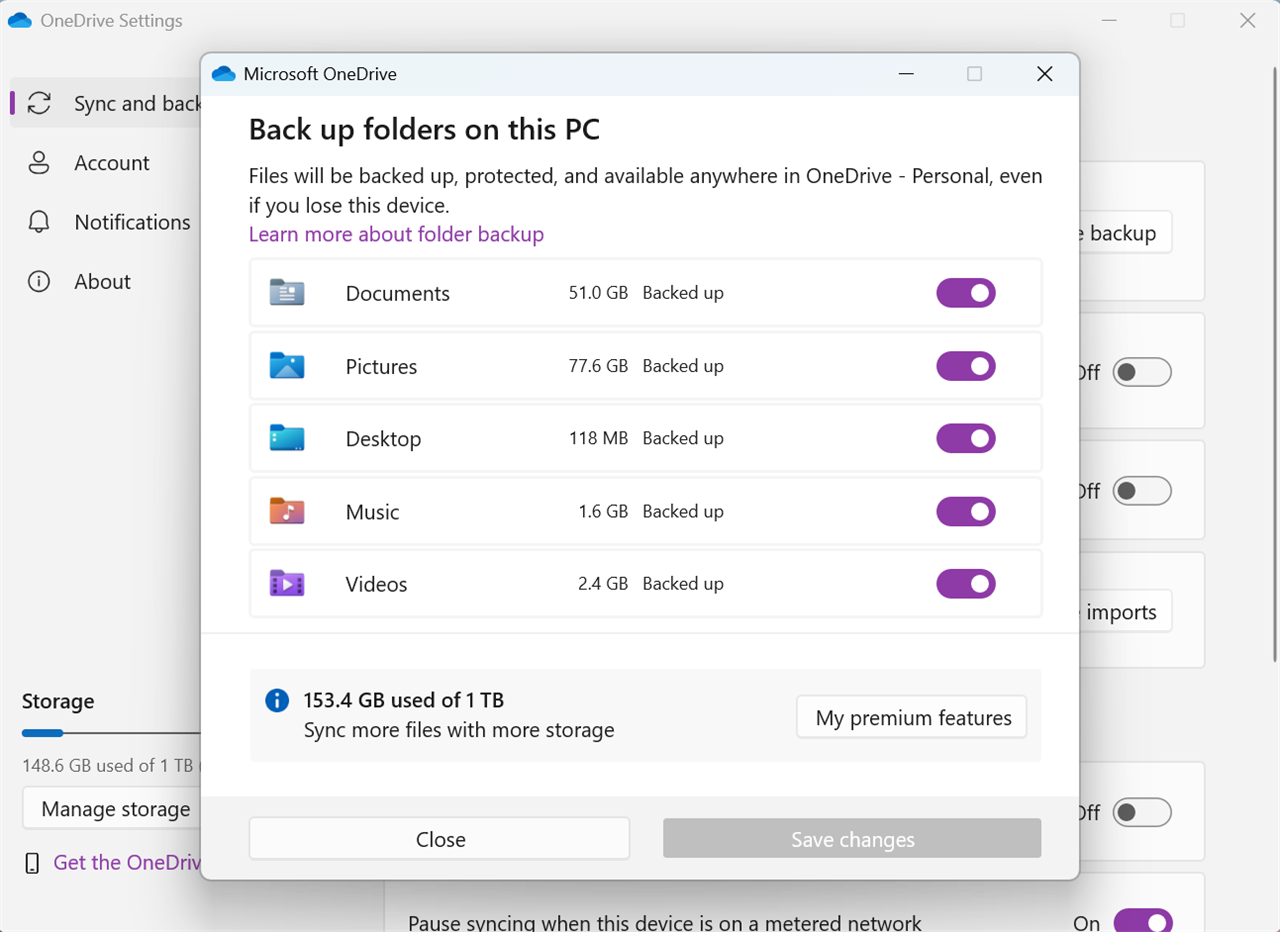 Photo: Windows/Chris Hoffman
When you open the folder on your PC, you will see your files are gone. Instead, there's a helpful shortcut link to the folder in OneDrive. That's because Windows keeps your files in OneDrive even after you turn off backups. In other words, all the files that were in your Documents folder are now in the OneDrive\Documents folder.
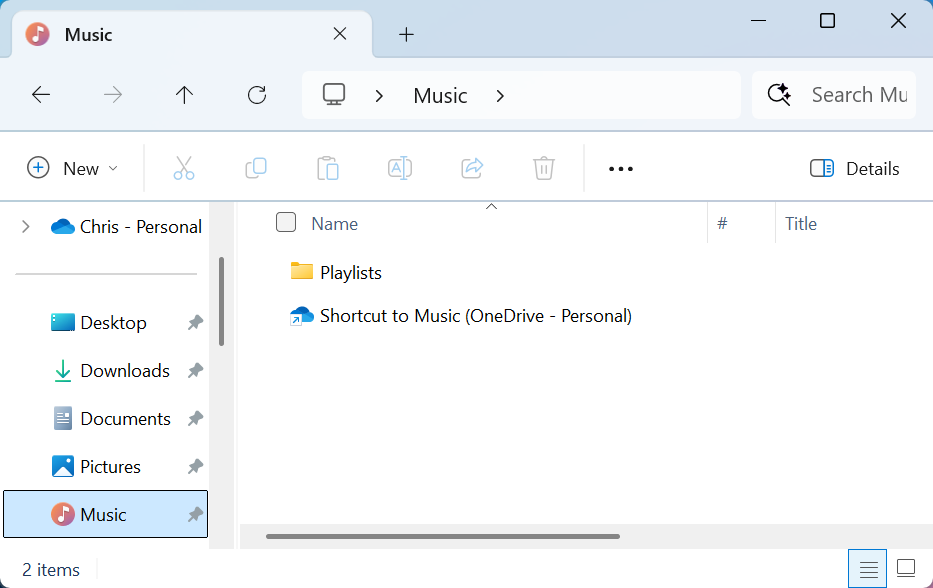 Photo: Windows/Chris Hoffman
To change this, double-click the shortcut. Select all the files in that folder and select "Cut." Then, go back to the new empty folder and paste in all the files. Windows will move them from OneDrive to their original location. OneDrive will now only sync the files you place in the OneDrive folder on purpose.
You can now sign into OneDrive on the web and delete any stray files if you like, but be absolutely sure you have local copies of anything before you delete it.
If you use Microsoft Office apps, you may also want to save documents to your PC by default — not OneDrive. In an app like Word, click File > Options, select "Save," and check "Save to Computer by default."
You should back up your PC, even without OneDrive
You can sync your files with any cloud storage service, so let's talk backups instead. If you're not backing up to OneDrive, you'll want backups to ensure you don't lose your critical files. Cloud backups will work, but a local backup is always a good idea.
To back up your PC’s files, you'll need an external drive. A good external USB drive is an ideal solution — plug it in regularly and perform a backup. This is still a great solution, actually: It's faster to back up and restore large files to an external drive than to sit around waiting for them to upload and download.
Or, if you like that automatic-backup-over-the-network experience but you want to control it yourself, you can get a NAS. Network-attached storage devices will let you back up and restore PCs without plugging in and unplugging external drives, so you can make it automatic. But they'll be backing up to a device you have on your own network, one you control — not cloud storage.
But OneDrive has its benefits
OneDrive has its benefits — especially if you have 1 TB of cloud storage thanks to Microsoft 365. But OneDrive will also hoover up your PC's files unless you tell it otherwise.
Just be sure to back up your files if you turn off OneDrive. For the average person who wasn't making any backups anyway, automatic OneDrive syncing is a good way to make sure you don't lose your data.
If you’re looking for a more comprehensive data back-up, take a look at the Micro Center Data Services. Our expert technicians can help backup data, recover data, destroy data, and even migrate data. When you’re ready to keep your data secure, schedule an appointment and stop by your local Micro Center.
More from MC News
- Run AI Locally: The Best LLMs for 8GB, 16GB, 32GB Memory and Beyond
- How to Use Local AI With Your Own Files: A Beginner's Guide to RAG
- Reading vs. Answering: The Two Hardware Bottlenecks Behind Local AI Performance
- How to Use a Local LLM in Visual Studio Code
- Hands-On with the AMD Ryzen AI Halo
- Quantization Explained: Why the Same LLM Gives Better Results on High-End Hardware
- Why Context Length, Not AI Model Size, Is Your Biggest VRAM Problem
- How to Use LM Studio to turn your PC into an AI Server
- Why VRAM and Memory Bandwidth are Key for Powering Local AI
- Keyboard 101: Intro to Computer Keyboards
- Fix It Yourself: Talking to iFixit on Why Repairable Tech Matters
- The Local LLM Your Laptop's Been Waiting For
- Gemma vs Qwen: Which Local AI is Best?
Chris Hoffman is a veteran tech journalist and the former Editor-in-Chief of How-To Geek. He's been going hands-on with PC hardware and getting his hands dirty with Windows for 15 years. And has written for publications including PCWorld, PCMag, Computerworld, The New York Times, Fast Company, and Reader's Digest.