
How to Install Windows 11 Without a Network Connection
There are still a handful of ways to install Windows 11 without a network connection or a Microsoft account.How-To

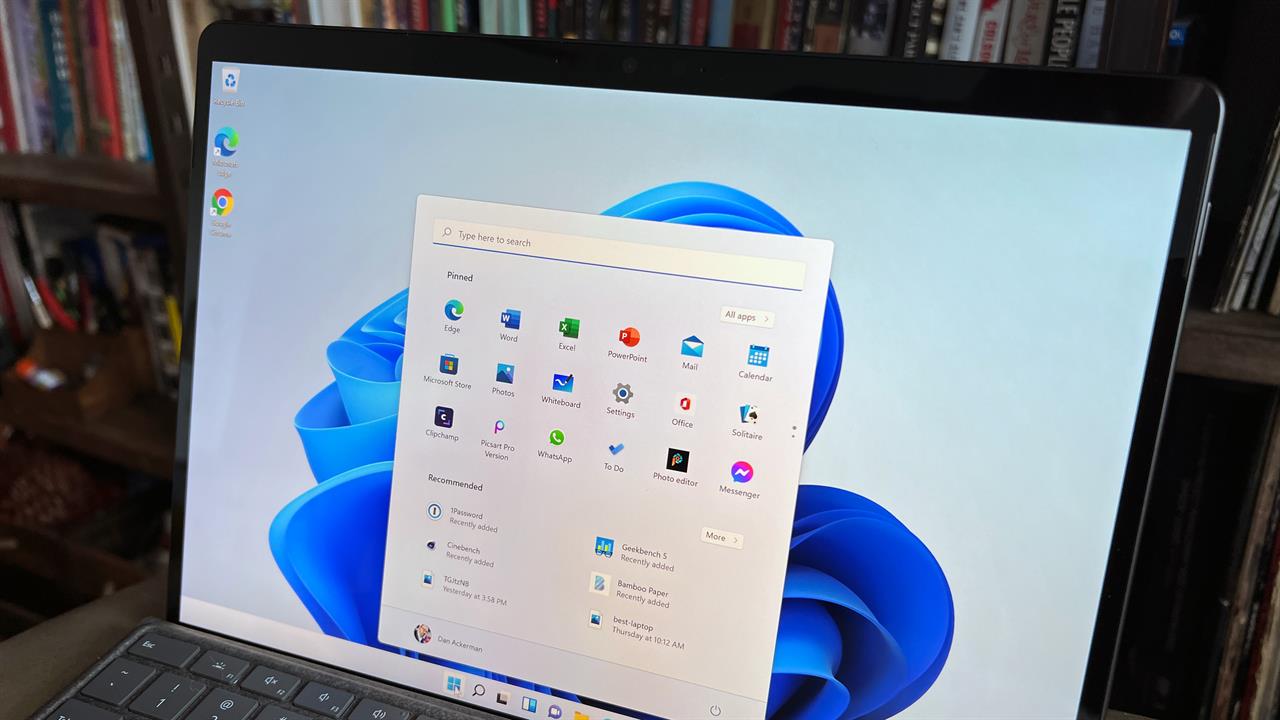 Photo: Dan Ackerman
Installing Windows 11 with some flexibility has become increasingly complex as Microsoft moves closer to a mandatory online, Microsoft Account-linked setup. But many users who are building a new PC, setting up in a location without Wi-Fi, or troubleshooting hardware, etc. simply would rather have a local-only account.
I’ve installed Windows on more PCs than I can remember, including back when you could walk straight through setup without touching the internet. Windows 11 doesn’t make that easy anymore. Microsoft now assumes everyone will set up a Microsoft account, sync everything online, and stay connected at all times.
As of early 2026, Microsoft has patched many of the older methods for installing and activating Windows, and removed legacy script files. However, there are still a handful of ways to install Windows 11 without an active internet connection or an online Microsoft-linked account. The workflows below should work for most people, but note that Microsoft updates could change these at any time.
The Terminal Bypass (For New PCs and Laptops)
If you are setting up a brand-new, pre-built desktop PC or a laptop that already has Windows installed, you will encounter the "Out-of-Box Experience" (OOBE). When you reach the screen that insists you connect to a network, use these terminal commands. Note that Microsoft officially began blocking the legacy OOBE\BYPASSNRO command and the newer start ms-cxh:localonly strings in late-2025 builds, but the following may still work for you.
-
Open Command Prompt: On the "Let’s Connect" screen, press Shift + F10. (On many laptops, you will need to press Shift + Fn + F10).
-
Enter the Bypass Command: In the black window that appears, type the following and press Enter: start ms-cxh:localonly
-
Alternative (Registry tweak): If the command above returns an error, Microsoft may have patched that specific string in your build. Type this command instead: reg add HKLM\SOFTWARE\Microsoft\Windows\CurrentVersion\OOBE /v BypassNRO /t REG_DWORD /d 1 /f
-
Restart: After entering the registry command, type shutdown /r /t 0 and press Enter. The PC will reboot.
-
Finish Setup: When you return to the network screen, you will now see a new option: "I don't have internet." Click that, then click "Continue with limited setup" to create a local user account.
Rufus Bootable USB Utility
The most effective way to install Windows 11 offline is to bypass the requirements before you even start the installation. By using the free utility Rufus to create your bootable USB drive, you can bake this functionality directly into the installer.
-
Download the ISO: Visit Microsoft’s official Download Windows 11 page and download the multi-edition ISO file.
-
Configure Rufus: Open Rufus and select your USB drive and the ISO you just downloaded.
-
Apply the Bypass: When you click "Start," a "Windows User Experience" window will appear. Check the box that says "Remove requirement for an online Microsoft account."
-
Install: Boot from this USB drive. The Windows installer will skip the "Let’s Connect" screen entirely and proceed directly to local account creation.
The Windows 11 Pro Shortcut
If you are using Windows 11 Pro, Microsoft still provides a legitimate path that allows for local accounts.
-
When asked how you would like to set up the device, select "Set up for work or school."
-
On the next screen, click "Sign-in options."
-
Select "Domain join instead."
-
Despite the name, you do not need to be on a domain. This simply triggers the creation of a local Administrator account.
FAQ: Activating Windows 11 without an internet connection
What if the "I don't have internet" button still doesn't appear?
This usually happens because the PC is still detecting an active connection. If you have an Ethernet cable plugged in, unplug it. If you are on a laptop with a Wi-Fi kill switch, toggle it off.
Will I miss out on important updates if I set up a local account?
Not at all. Once you reach the desktop and manually connect to Wi-Fi, Windows Update will function normally.
Can I convert my local account to a Microsoft account later?
Yes. If you decide later that you want to use the Microsoft Store, Game Pass, or OneDrive, you can go to Settings > Accounts and link your Microsoft email.
What if Shift + F10 doesn’t open the Command Prompt?
On many laptops you’ll need Shift + Fn + F10.
Post-Installation: Activation
Installing offline does not prevent you from activating Windows. Once you reach the desktop and can eventually connect to the internet: Go to Settings > System > Activation. Enter your product key to link the hardware to a digital license.
By following these steps, you ensure that your PC remains your own—free from forced account syncing and unnecessary telemetry from the very first boot.
While this may seem daunting at first, the actual process is fairly simple. It’s a few extra clicks, but you keep full control over setup, with no forced account sign-in, no premature online connections, and a clean local environment from the start.
Updated: June 2026
More from MC News
- Run AI Locally: The Best LLMs for 8GB, 16GB, 32GB Memory and Beyond
- Quantization Explained: Why the Same LLM Gives Better Results on High-End Hardware
- How to Use LM Studio to turn your PC into an AI Server
- Why VRAM and Memory Bandwidth are Key for Powering Local AI
- Keyboard 101: Intro to Computer Keyboards
- Fix It Yourself: Talking to iFixit on Why Repairable Tech Matters
- The Local LLM Your Laptop's Been Waiting For
- Gemma vs Qwen: Which Local AI is Best?
Eric Franklin worked at CNET for over two decades, eventually becoming Editorial Director of CNET's Tech Reviews team. He now works as an SEO consultant and freelance writer.