
The Complete Guide to Update Drivers in Windows

One of the most important -- but often overlooked -- maintenance tasks for a Windows PC is keeping the drivers updated. It ensures you have the latest security patches, all the exciting new features, and the best performance and stability. Keeping them all updated does mean doing a few different things, though, and it’s easy to let a driver slip through the cracks and languish on old software for extended periods of time.
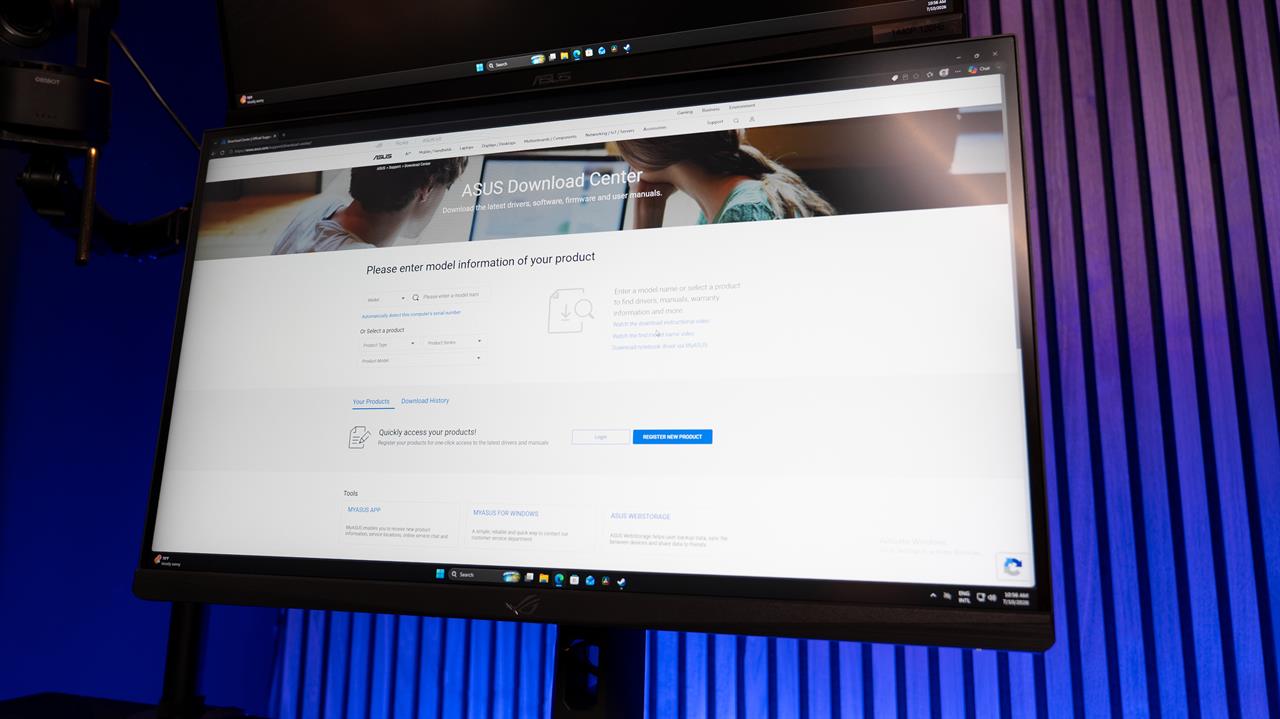 Photo: Jacob Bobo
If you’re not sure if you’ve kept everything quite up to date, this guide will walk you through the most important steps to get everything updated and running as it should.
How to update Windows
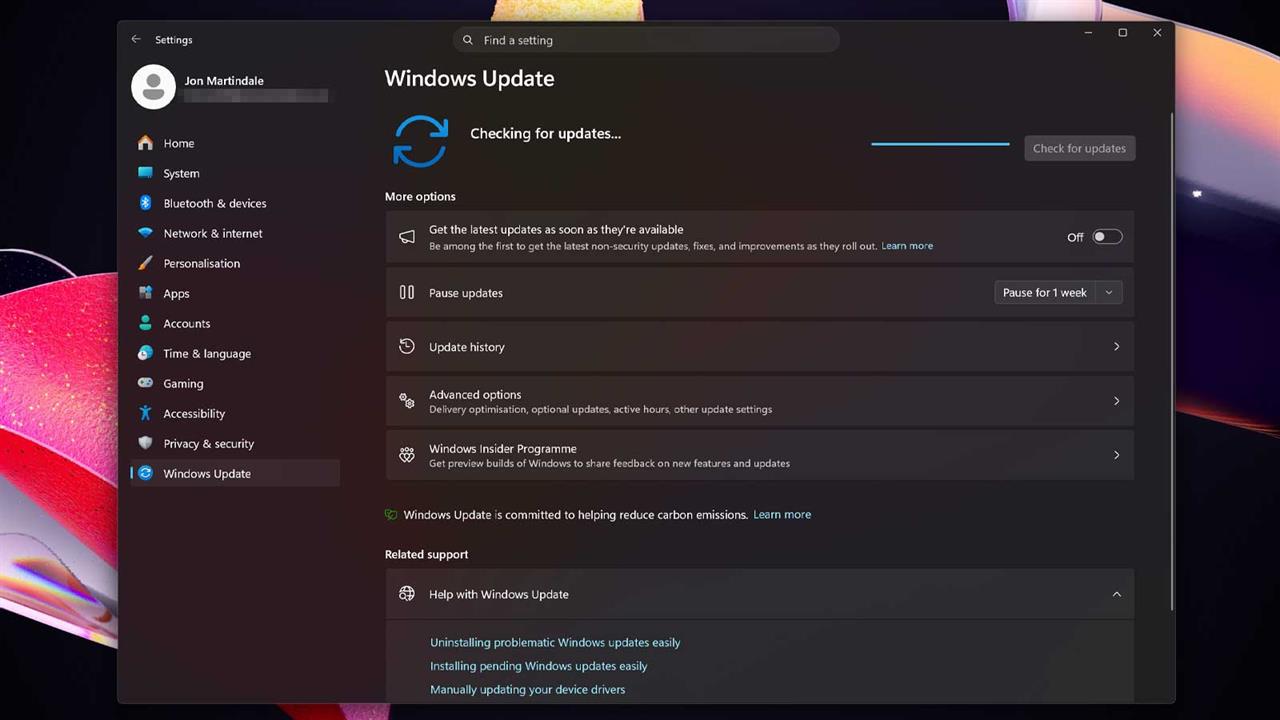
Keeping Windows and its various drivers and services updated is arguably the most important from a security standpoint, but it can also unlock additional features and performance enhancements, like the Low Latency Profile introduced in Summer 2026.
- Use Windows search to look for “Windows Update,” and select Check for updates from the results.
- Select the blue Check for updates button.
- When presented with a list of updates, select Download and install on the most important updates. If in doubt, select all, but a web search for specific updates and builds can help to ensure all updates are wanted.
- Wait for the updates to complete, and if necessary, restart the PC when prompted.
- Repeat this process as many times as are necessary to bring the Windows installation up to the latest version.
- It can also be worth checking if there are any optional updates to install, as these can give additional features and functionality within Windows. On the Windows Update page, select Advanced Options followed by Optional updates. Select any additional updates, then select Download and install.
If you want to stay on the cutting-edge of Windows features and are interested in trying out some of the updates before they’re ready for the mainstream, you can join the Windows Insider Program. Once joined, more advanced updates can become available within Windows Update, though it depends on what branch of the Insider Program you are a part of.
How to update graphics drivers
 Source: AMD/Jon Martindale
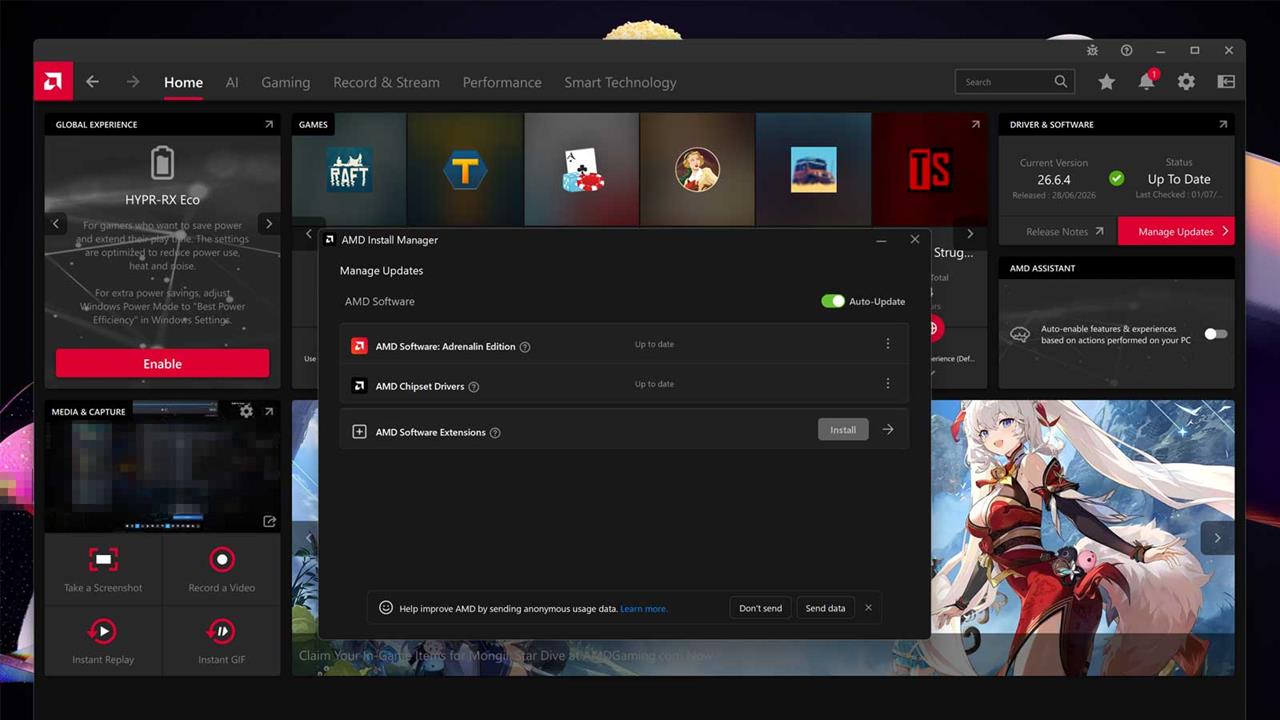
If you’re going to play games on your PC, then keeping your graphics drivers up to date is paramount. It ensures you get all the optimizations for new games, are enjoying the latest upscaling and functionality features, and are protected with important bugfixes that are rolled out to address outstanding issues.
The simplest way to update your graphics drivers is to use one of the companion applications. The NVIDIA App, AMD’s Adrenalin Edition software, and Intel Graphics Software all have built-in buttons that are straight-forward click-and-follow-the-on-screen-prompts-to-update fare.
You should also receive prompts to update your drivers from those apps, so just open them periodically to see if you need to run a driver update.
How to update graphics drivers manually
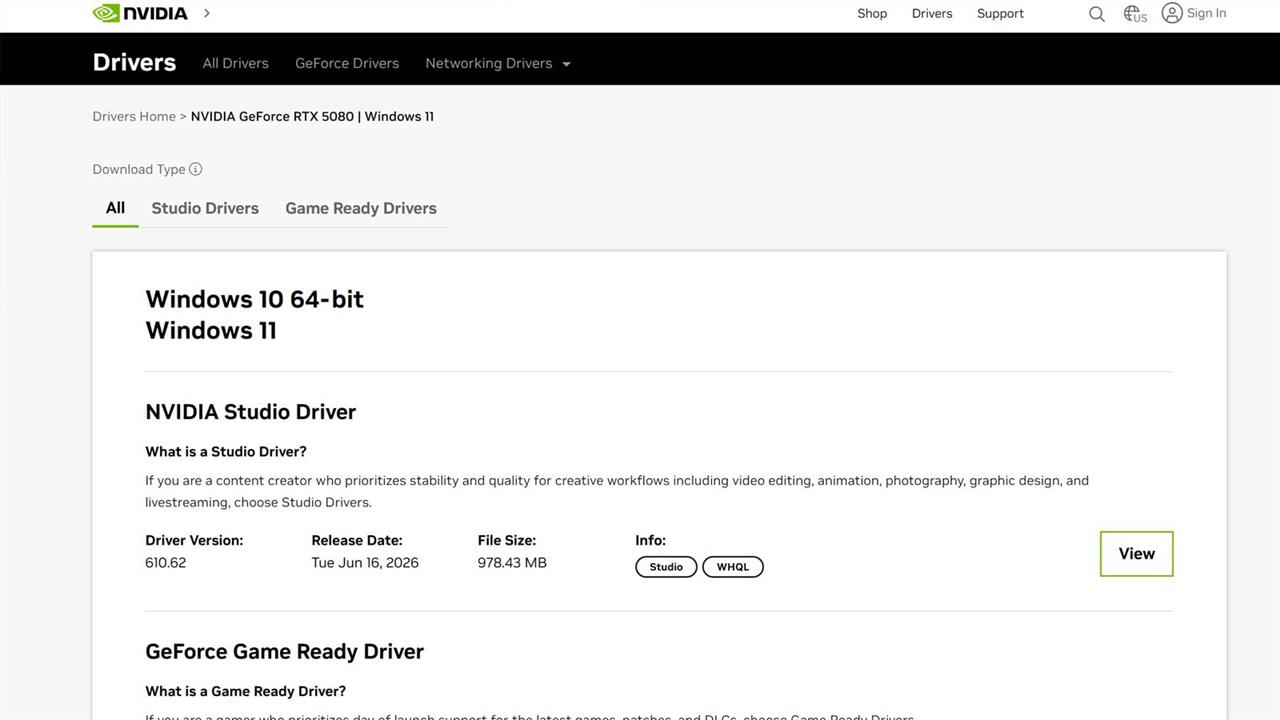 Source: NVIDIA/Jon Martindale
Manually updating your graphics drivers is another option that gives you greater control over what drivers are installed. You can more easily rollback drivers to previous versions if you encounter a bug, or want to run an old GPU that is no longer supported by the latest releases.
Note: If you want to be especially thorough with manually updating your graphics drivers, you can consider using Display Driver Uninstaller (DDU) to remove any old drivers first. This isn’t necessary, but can improve stability, especially if you’ve updated your drivers many times over the years, as old drivers can occasionally cause weird conflicts. Removing them first ensures that doesn’t happen.
NVIDIA
- Navigate to the NVIDIA website. The latest drivers can be downloaded by using the large buttons at the top of the page. Alternatively, under “Manual Driver Search,” use the drop down lists to select the graphics card, operating system, and language. Then select Find.
- The latest NVIDIA Studio Driver and GeForce Game Ready driver will be shown for the selected graphics card and operating system. Choose which one to download, then select View, followed by Download.
- To view more options for older drivers or alternative downloads such as beta releases, select View More Versions, then choose a driver, select View, then Download.
- When it’s downloaded, run the installer and follow the on-screen instructions to update the driver. The system may need a reboot to complete it.
AMD
- Navigate to the AMD website. The latest Windows or Linux drivers can be downloaded by selecting the respective download buttons. Alternatively, use the search box to type in the GPU model name, or use "Browse Products to select the GPU from the list of options. Once the specific graphics card has been chosen, select Submit.
- Select which operating system to download the driver for. Then, either download the “Auto-Detect and Install” application, which will check the GPU model automatically and then download the appropriate driver, or the latest Adrenalin Edition version. Choose a driver then select Download.
- For more options, select Previous Versions at the bottom of the page. Then select which operating system to download the driver for, and scroll through the list to find the older driver to download.
- Once the chosen driver has been downloaded, run the installer and follow the on-screen instructions to update the driver. The system may need to reboot to complete the installation.
Intel
- Navigate to Intel’s download center. The top search bar can be used to look for the specific model of graphics card, or select Graphics Card from the drop-down options.
- Find the driver for the graphics card from the list. Alternatively, use the filters on the left-hand side to limit the options to a generation of GPU, a type of graphics chip, and/or operating system. Select the driver for more information, or select Download to download it.
- Each driver page has a list of compatible graphics cards and processors with onboard GPUs, so use that to confirm compatibility with the GPU if needed When ready, select Download.
- When the download has completed, run the installer and follow the on-screen prompts to complete the installation. The system may need to reboot to complete the installation.
How to update motherboard drivers
 Source: ASUS/Jon Martindale
Motherboard drivers, otherwise known as chipset drivers, are often installed automatically by Windows updates, but updating them manually is a great way to stay up to date with the latest features and add new capabilities to your motherboard as they are released.
Every motherboard manufacturer has a slightly different website setup for their drivers, so the specifics may not look exactly the same for your board, but these instructions should be broadly relevant for most.
- Navigate to the website for the motherboard or pre-built system manufacturer.
- Either navigate to the motherboard or system’s page and select the Support tab, or use the website’s Support/Download page to find the motherboard there. Look out for any sections called Drivers/BIOS/Firmware, or similar.
- When prompted, select the right operating system for the PC.
- Likely, a number of options will be given for motherboard drivers. These can include: Chipset, Wireless, Network, Bluetooth, Audio, USB, RAID, Thunderbolt, SATA, and bespoke apps and programs. The Chipset drivers are the most important to be kept up to date, but the others can be useful too.
- When the drivers have been found, select the Download button. When downloaded, run the installer and follow the on-screen prompts to complete it. The system may need to reboot to complete the installation.
How to update WiFi and Bluetooth drivers
Wi-Fi and Bluetooth drivers are part of the motherboard drivers, so updating them usually involves a very similar process to updating motherboard or chipset drivers. You just need to specifically download and install the right drivers for the job.
Follow the instructions in the above “Motherboard drivers,” section, then when presented with the list of options, specifically look for the “Wi-Fi,” or “Wireless” drivers. Bluetooth may have its own section, or may be bundled under the same wireless connectivity section. Every motherboard and system manufacturer does things slightly differently.
If you get stuck, do a web search for your motherboard model name and number, and “Wi-Fi drivers,” and an early result should take you directly to the download page.
How to manually update all drivers
 Source: Microsoft/Jon Martindale
You can update the drivers for anything connected to your PC through Device Manager, too. This is a useful way to check if anything you’re using has problematic, old, or missing drivers.
- Use Windows search to look for “Device Manager,” and select the corresponding result.
- If necessary, select the system at the top to expand the list of connected devices and components. Either look for any that have a yellow exclamation mark next to them, or find a specific component to update the driver for.
- Double click/tap it, or right-click and select Properties.
- Select Update driver.
- Select Scan automatically for drivers to have Windows search online for the correct driver. If it finds the driver, follow the on-screen prompts to install it.
- If that doesn’t work, or if there is a specific driver to install, select Browse my computer for driver software.
- Use the Browse button to find the driver file, then select next and follow the on-screen prompts to install it. Alternatively, to install a generic driver, like one for an Xbox Wireless Receiver, select Let me pick from a list of available drivers on my computer.
- Scroll through the list of device types. Click the device and select Next. Specify a driver from a list, select it, then select Next. Follow any further on-screen prompts to complete the driver installation.
How to update BIOS firmware
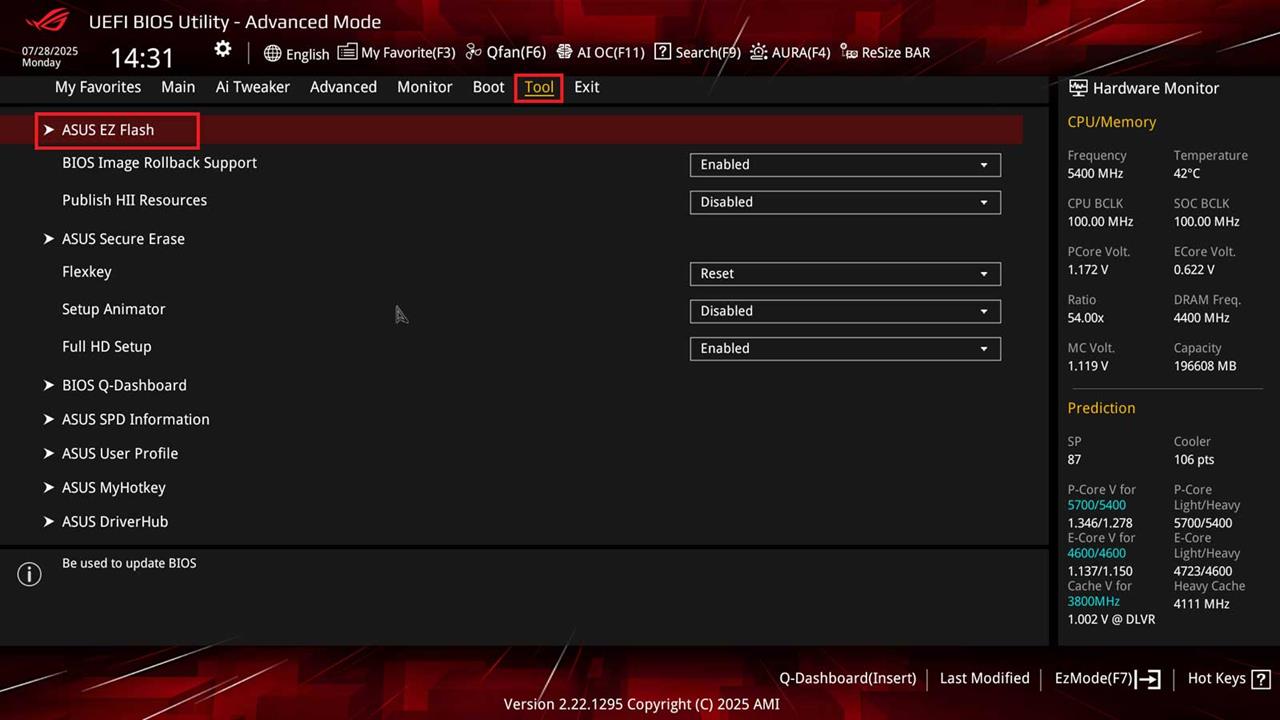 Source: Asus
Although not a driver, specifically, keeping your UEFI/BIOS firmware up to date can unlock additional performance features, expanded CPU and PCIe card support, improve system stability, and fix bugs and flaws in the system.
Note: Once you begin a BIOS firmware update, it’s imperative that it isn’t interrupted at all, or it can brick your PC, making it inoperable. Be sure that when you begin the update, there won’t be any power cuts or other interruptions where possible.
- Navigate to the motherboard manufacturer’s website. Look for the support page, or the specific driver update page for the motherboard model.
- Find the UEFI/BIOS firmware update page. Look for the latest version. Confirm it’s compatible with the motherboard, then download it.
- Move the file on to a USB device, connect it to the PC, then reboot the system.
- Use the motherboard’s specific BIOS key to enter the BIOS. It is often F2 or Delete, but each board may have its own unique key to press.
- In the UEFI/BIOS, navigate to the firmware update section. This can be called all manner of things, including with tool names like “EZ Flash,” for example. Search the specific motherboard’s BIOS for tips on finding the firmware update/flashing section or tool.
- Select the update tool and follow the on-screen prompts to select the BIOS file on the connected USB drive. Then begin the update, making sure not to interrupt it while it flashes.
- When the update is finished, reboot the system and confirm it still works as intended. Enter the BIOS once again, and the version should be updated to the newly installed version.
And that’s how you can keep your system running up-to-date with the latest drivers and updates. If you have more questions about updating drivers, or if you just have worries about the health of your computer or device, our experts can help! Schedule an appointment with the Knowledge Bar by visiting our Services webpage.
More from MC News
- The Complete Guide to Essential Browser Settings
- Complete Guide to Windows 11 Disk Management
- Run AI Locally: The Best LLMs for 8GB, 16GB, 32GB Memory and Beyond
- How to Build a PC with a Hardline Water-Cooling Loop
- 3D Print a Mac Mini Monitor Mount
- Keyboard 101: Intro to Computer Keyboards
Jon Martindale is a freelance technology journalist and writer from Gloucestershire, UK. He's written for a range of publications over a 20-year career, including DigitalTrends, USNews, Forbes, and Lifewire, among many others. Over that time he's written countless how-to guides, best-of lists, hands-on reviews, and in-depth op/ed features.
He has been building and working with computers since his teens, and loves nothing more than trying out the latest components and gadgets to see what they can do. When he isn't staring at a monitor, he can be found chasing after with his two young children, playing board and roleplaying games, or walking his French bulldog cross.