

Getting Started with LM Studio Bionic

Image: LM Studio
LM Studio is one of the easier ways to get open-weights large language models running locally on your hardware. Just download the app, browse its interface for models, download one, and load it up. But that just gives you a chatbot-like experience, similar to using ChatGPT. If you want your local AI to actually do things for you — like create a document, write some code, or design a website, you need an agent.
OpenClaw and Hermes are popular agentic harnesses for local AI, but now LM Studio has its own version, called Bionic. Rather than merely generating text responses, Bionic gives open models direct authority to execute multi-step technical tasks, such as inspecting project directories, running terminal commands, and editing code across multiple files, all while keeping user data private.
The first thing to know is that Bionic isn't an update to LM Studio. It's a separate app with a separate download, available for Windows, Mac, and Linux at lmstudio.ai. You'll be prompted to sign in, but you only need an account if you plan to use LM Studio's Secure Cloud models, which run on credits you buy, or LM Link. Everything local works without signing in.
To put Bionic through its paces, I set up a practical test case: tasking the local agent with building a brand-new, single-page website from scratch. Bionic organizes workflows into dedicated project environments, splitting tasks between Code Projects designed for software development and Work Projects meant for sandboxed document creation and research. For this web development test, launching a Code Project allowed me to point Bionic directly at a fresh, empty target directory. I prompted the model in plain English to design a modern, responsive single-page site complete with clean semantic structure, custom CSS styling, and interactive navigation.
Throughout the process, Bionic demonstrated a key strength of using an agent versus a standard chatbot. Instead of forcing you to manually copy and paste code blocks back and forth into an editor, the agent created and modified the HTML, CSS, and JavaScript files directly inside the project directory. Crucially, Bionic incorporates a live inline preview. This allowed me to inspect the generated layout, approve refinements, and request real-time fixes for design tweaks without ever leaving the app.
Running on the right local hardware
For local hardware, I used the new AMD Ryzen AI Halo, a compact desktop built for local AI use. Under the hood, the system is driven by the AMD Ryzen AI Max+ 395 processor, a piece of silicon containing 16 high-performance Zen 5 CPU cores, 40 RDNA 3.5 graphics compute units, and an advanced XDNA 2 neural processing unit capable of delivering up to 50 TOPS of dedicated AI compute. But the true hardware crown jewel for local AI model execution is the system's 128GB of unified LPDDR5x memory, pushing up to 256GB/s bandwidth.
I initially used Qwen 3.6 in Bionic, which I had previously downloaded through LM Studio. The models you download with the latter are available to the former, which can save some time because you don't have to redownload them. One quirk — you can't run LM Studio and Bionic at the same time, it's one or the other. Because Bionic utilizes the core LM Studio engine under the hood for local inference, running both concurrently causes conflicts.
I later swapped to Gemma 4, one of Google's open weights models, and tried the same prompt. Of the two, I thought Qwen 3.6 did a better job of scraping the information I had requested and putting it together in a multi-section website. A handful of follow-up prompts took the original design and pulled in online images to complete the look and feel. The final result was impressive and fully functional, now successfully deployed and live at https://danackermannyc.github.io/danackermanwebsite/.
For PC builders looking to run agentic setups locally, hardware selection remains vital. Because agentic loops require iterative thinking, file tool calls, and output evaluation, equipping your rig with a GPU with 12GB to 16GB or more of VRAM — or using a dedicated AI system like the AMD Ryzen AI Halo or the NVIDIA DGX Spark — ensures smooth performance when running large parameter local models.
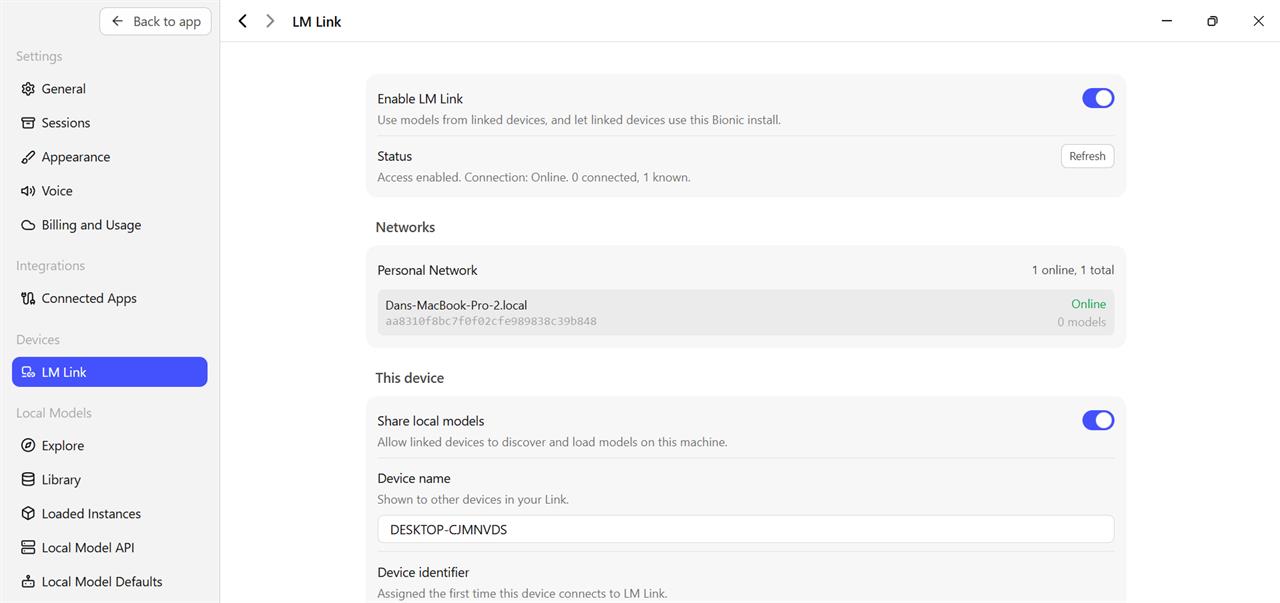
Beyond running models strictly on the host machine, Bionic also leverages LM Link to distribute compute across your local network. In my testing, I activated LM Link by logging into the same LM Studio account on both the AMD Ryzen AI Halo desktop and a MacBook. Once authenticated, the MacBook instantly discovered the Halo system over the network, allowing me to remotely select and load models directly onto the desktop's hardware, and it worked even though I was using Bionic on the Halo and LM Studio on the MacBook.
Ultimately, Bionic shows where local AI is heading: away from passive chatbots and toward active, task-oriented software that interacts directly with your file system. It demands serious hardware—especially if you want low latency—but systems like the AMD Ryzen AI Halo prove that local agentic workflows are becoming more practical than ever. If you already have a capable GPU or an AI-focused desktop, downloading Bionic is an easy, highly capable way to turn your local models into genuine productivity tools without handing your data over to the cloud.
More from MC News
- Run AI Locally: The Best LLMs for 8GB, 16GB, 32GB Memory and Beyond
- How to Use Local AI With Your Own Files: A Beginner's Guide to RAG
- Reading vs. Answering: The Two Hardware Bottlenecks Behind Local AI Performance
- How to Use a Local LLM in Visual Studio Code
- Hands-On with the AMD Ryzen AI Halo
- Quantization Explained: Why the Same LLM Gives Better Results on High-End Hardware
- Why Context Length, Not AI Model Size, Is Your Biggest VRAM Problem
- How to Use LM Studio to turn your PC into an AI Server
- Why VRAM and Memory Bandwidth are Key for Powering Local AI
- Keyboard 101: Intro to Computer Keyboards
- Fix It Yourself: Talking to iFixit on Why Repairable Tech Matters
- The Local LLM Your Laptop's Been Waiting For
- Gemma vs Qwen: Which Local AI is Best?
Micro Center Editor-in-Chief Dan Ackerman is a veteran technology journalist with over 20 years of experience testing and reviewing the latest consumer tech. He previously served as Editor-in-Chief of Gizmodo and Editorial Director at CNET and is the author of the New York Times-reviewed book The Tetris Effect, a critically acclaimed Cold War history of the world's most influential video game. Reach him at dackerman at microcenter.com.


