
How to Enable and Optimize HDR Gaming in Windows 11

HDR (High Dynamic Range) enhances visuals with deeper blacks, brighter highlights, and more realistic colors. Windows 11 has improved its HDR support, making it easier to use this feature. However, getting the best results requires some fine-tuning. Here’s how to optimize your setup for HDR gaming.
 Photo: Jacob Bobo
What you need for HDR gaming
Before you start, make sure you're running Windows 11 and have the following:
- HDR-capable display: Check for a monitor with a DisplayHDR certification (400, 600, or higher). The easiest way to do this is to check the specs online (or on its Micro Center product page).
- Compatible GPU: A modern NVIDIA or AMD graphics card that supports HDR. Check which graphics card you have by right-clicking on the desktop, click on display settings. Click on Advanced display and check under "Display information". Then Google your graphics card specs to check for HDR support.
- High-quality cables: Use HDMI 2.0 or higher, or DisplayPort 1.4 cables.
How to enable HDR on Windows 11
- Open Settings > System > Display.
- Select your monitor and toggle "HDR" to On.
- Under HDR settings, enable "Auto HDR".
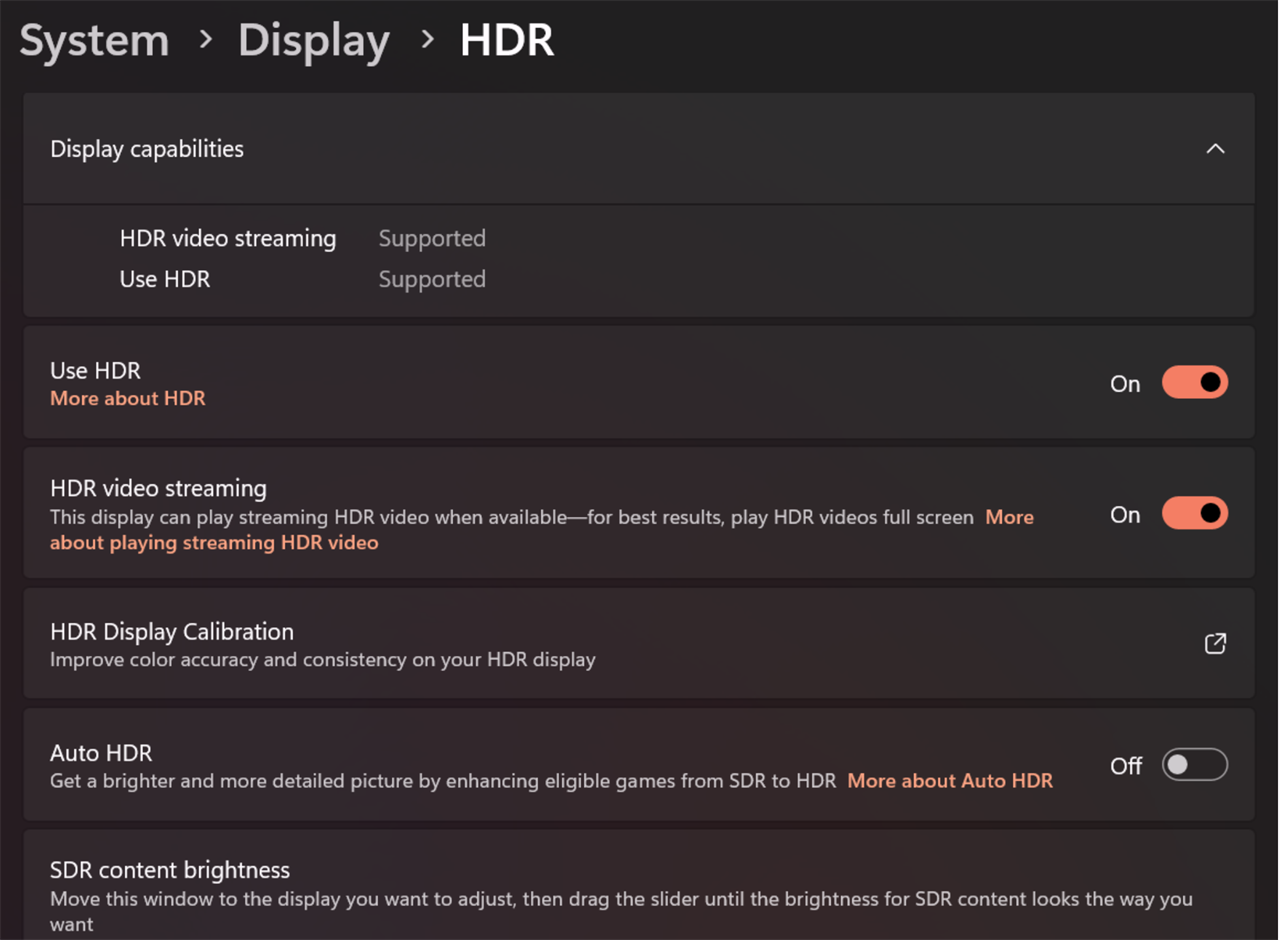 Photo: Microsoft/Windows 11
How to calibrate your HDR settings:
- Open Settings > System > Display > HDR settings.
- Click HDR Display Calibration and download the guide.
- Launch the guide and follow the instructions until calibration is done.
- The calibration test is just a few test patterns that require simple level adjustments. IE, adjust lights/darks until you can no longer see a pattern.
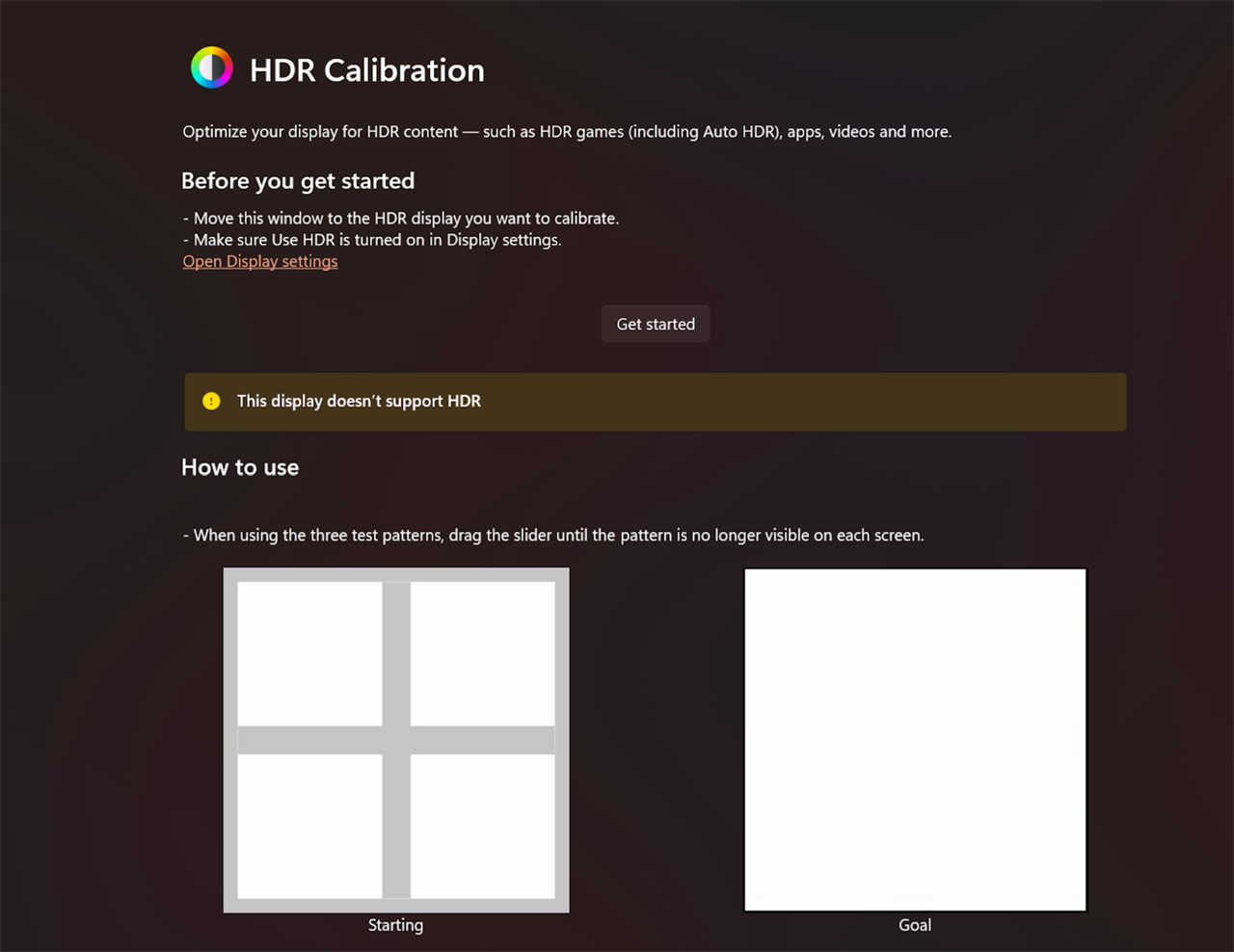
Photo: Microsoft/Windows 11
How to Optimize your GPU settings for HDR
For NVIDIA owners:
- Open the NVIDIA Control Panel (right-click on Desktop, choose "Show more options," click on "Nvidia Control Panel," and go to Display > Change resolution).
- Set the output color depth to 10 bpc.
- Choose RGB color format and select Full dynamic range.
For AMD users:
- Open AMD Radeon Software and go to Display settings.
- Enable the 10-bit pixel format and set the color depth to Full RGB.
How to adjust game-specific HDR settings
Many current games include their own HDR settings. These settings allow you to get more granular with your HDR options and can lead to better, sharper results. If you're willing to devote the time, here are a few settings to focus on:
- Peak brightness: Set this to match your monitor's maximum brightness, which is usually between 400 and 1000 nits.
- Paper white: Start at around 200 nits, then tweak it based on what looks good to you. The brightness of the light in your room will have a large effect on this.
- Color saturation: It's best to leave this close to the default setting unless the colors look weird.
Keep in mind that you may need to change your general settings based on the game you're playing. Most people—like me—don't want to spend all day configuring HDR, though, so following the above and leaving it at that might be the best option.
Conclusion
HDR can make a big difference on image quality in games, but only when it's calibrated correctly. I spent months thinking I had calibrated HDR correctly on my old Xbox. Turns out, I was wrong and when I finally had an actual HDR-capable display the difference was dramatic.
Windows 11 HDR FAQ
Can I use HDR on a non-HDR monitor?
Technically yes, but your results will vary. Full native HDR on a supported monitor just looks way better than a monitor that doesn't support it and it's immediately noticeable.
Is Auto HDR worth it?
Yes, especially for older games. Auto HDR enhances older games that weren’t originally designed with HDR in mind. However, while a good compromise, it will never be as good as native HDR.
How do I enable HDR on Windows 11?
Just in case you wanted to skip to the key part: Go to Settings > System > Display, then toggle Use HDR under the HDR section. Ensure your monitor supports HDR and that you're using the correct cable.
Does HDR work in all games?
Not all games support HDR natively. However, Auto HDR can enhance non-HDR games to take advantage of HDR displays.
What cables do I need for HDR?
You need HDMI 2.0 or DisplayPort 1.4. Older cables won't have enough bandwidth for HDR content.
How can I easily turn HDR on and off?
Press Win + Alt + B on your keyboard to switch HDR on or off in a split second. (Your screen will briefly flash as the display mode changes.)
Updated: August 31, 2026
More from MC News
- Run AI Locally: The Best LLMs for 8GB, 16GB, 32GB Memory and Beyond
- Quantization Explained: Why the Same LLM Gives Better Results on High-End Hardware
- Why Context Length, Not AI Model Size, Is Your Biggest VRAM Problem
- How to Use LM Studio to turn your PC into an AI Server
- Why VRAM and Memory Bandwidth are Key for Powering Local AI
- Keyboard 101: Intro to Computer Keyboards
- Fix It Yourself: Talking to iFixit on Why Repairable Tech Matters
- The Local LLM Your Laptop's Been Waiting For
- Gemma vs Qwen: Which Local AI is Best?
Eric Franklin worked at CNET for over two decades, eventually becoming Editorial Director of CNET's Tech Reviews team. He now works as an SEO consultant and freelance writer.